Adding a Goods Item by Barcode
To select a goods item for the document by barcode, a barcode scanner or video camera can be used. The goods item barcode will be read from the r_k StoreHouse Pro product card (see r_k StoreHouse Pro User Guide).
Reading a Barcode Using a Scanner
To add a goods item to a delivery note using a barcode scanner, open the document Goods page, enable the scanning mode — click the barcode scanner activation button (it should turn green  ) and scan the barcode on the goods item.
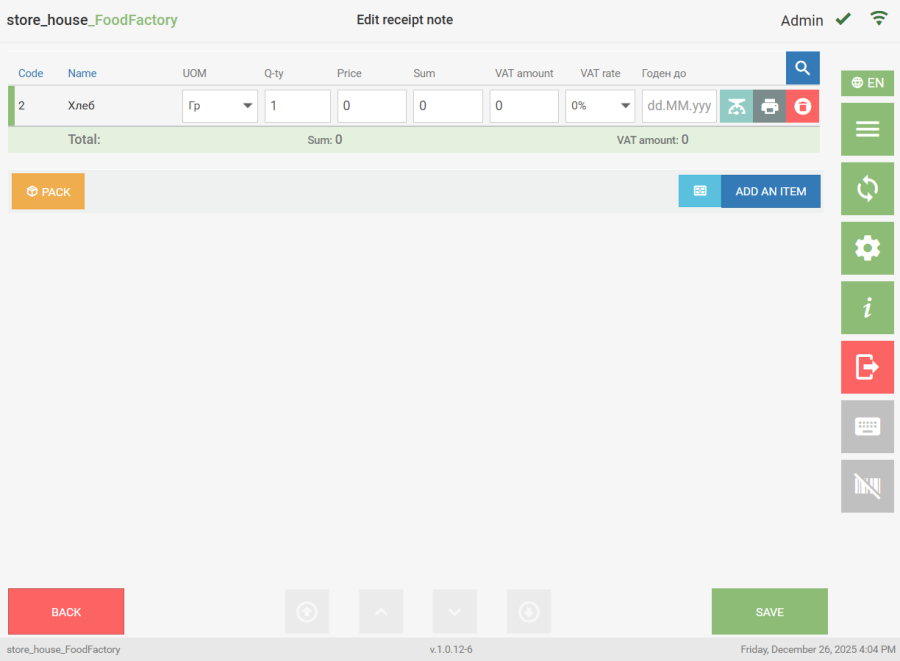
  If the goods item is found by the barcode in the database, it will be added to the delivery note with the unit of measurement for which the barcode is defined.
  Rescanning of the same barcode will increase the goods item quantity by 1, unless the "Add Scanned Goods Item as Separate Line" setting is set.
If this flag is set, when scanning the same barcode into the delivery note, the goods item will be added as a separate line. To merge lines with the same goods item, click the [PACK] button. In r_k StoreHouse Pro, documents will be uploaded with the number of lines specified when creating the document in FoodFactory.
If the goods item is not found by the barcode, the system will display a corresponding message. 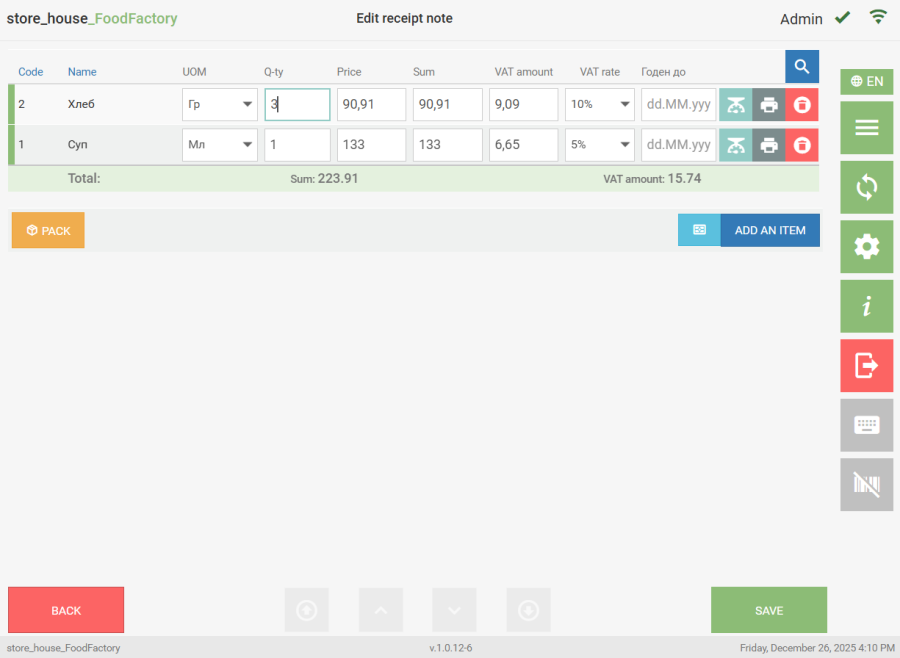 If the barcode was defined for a goods item synonym, the addition to the delivery note will occur via the synonym (see r_k StoreHouse Pro User Guide). Weight and single-item labels printed from the program in the main menu item Label printing can also be used to enter goods by barcode. The barcode printing mode in labels is determined in the print settings. By scanning weight labels of standard functionality (EAN13) and extended functionality (Code128)
|
|
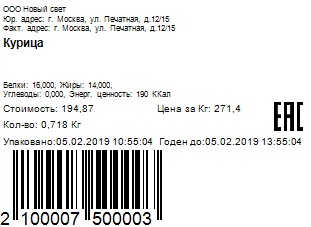
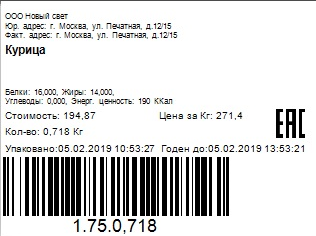
you can enter weighed goods into delivery notes in the quantity specified on the label.
By scanning single-item labels of standard functionality (EAN13) and extended functionality (Code128)
|
|
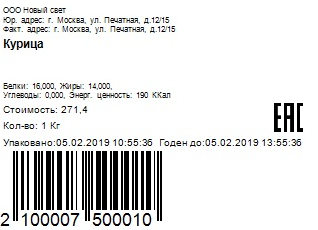
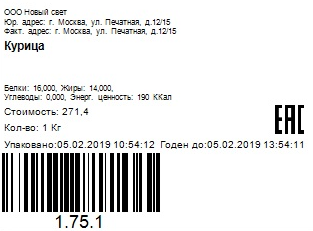
you can enter single-item goods into delivery notes in the quantity specified on the label.
If the "Use RK Menu Item Code" flag was set in the print settings when generating the barcode for the label, the goods code in the barcode on the label may coincide with the goods code in r_k StoreHouse Pro. In this case, when scanning the barcode in the document, a selection window will open where you can select the required goods item.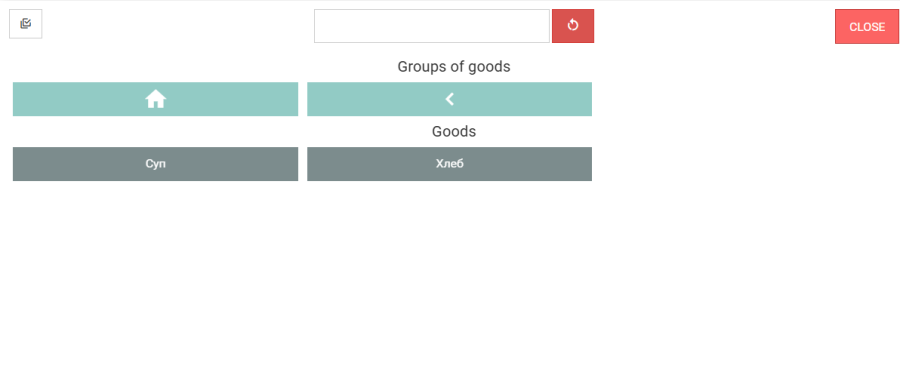
If VAT rates and prices including taxes for purchase and sale are set on the product card in r_k StoreHouse Pro, then when scanning the goods item label barcode in receipt and expenditure delivery notes, this data will be automatically inserted. Amounts in delivery notes will be displayed including VAT if the "Amount Incl. VAT" flag is set on the "Documents" tab of the settings window. |
If necessary, you can edit the values of the Q-ty, Sum, and VAT Amount fields.
Reading a Barcode Using a Camera
If the device running the FoodFactory application is equipped with a video camera or an external video camera is used, you can scan the barcode on a goods item using the video camera. After performing the settings, you need to get the application loading link from the technical service and follow it to open the program. Specifying https://* is MANDATORY! Also, the browser will consider this connection unsafe. Nevertheless, you must confirm the connection. In case the *HTTPS settings were not completed fully, when trying to enable the camera with the button  a message will appear stating that the camera is unavailable.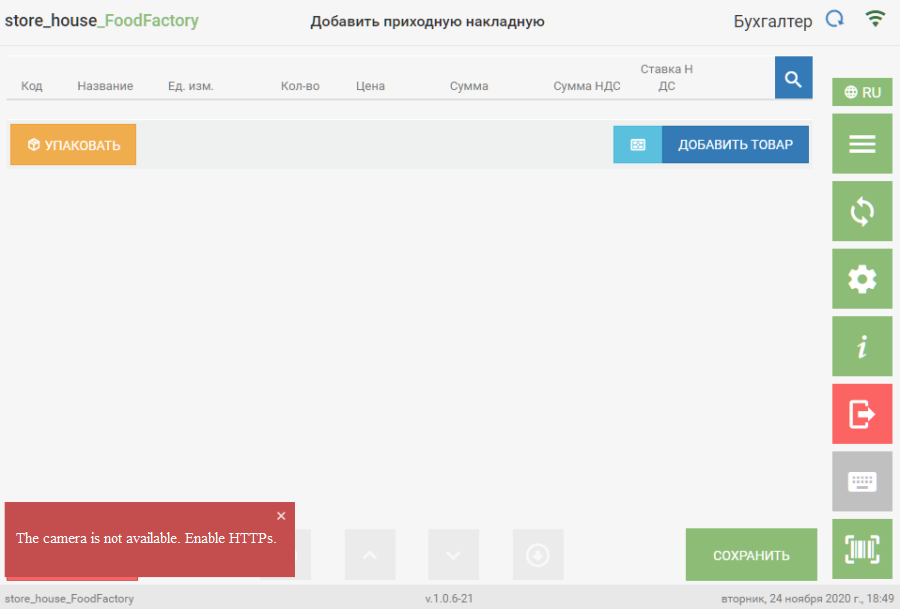
The ability to use a video camera depends on the technical characteristics of the camera itself and the device running the application. In the IOS operating system, it is impossible to access the camera from the browser. This is an IOS limitation. |
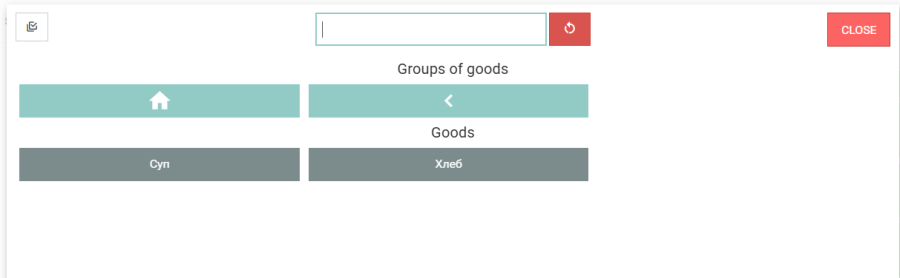
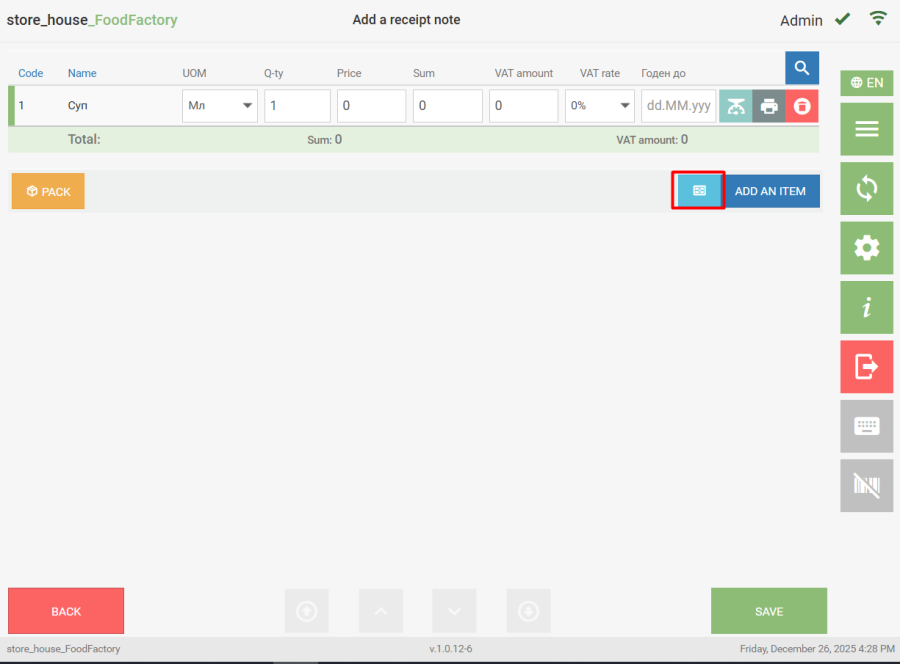
To add a goods item to a delivery note using a video camera, open the document Goods page and click the blue button to the left of the "ADD AN ITEM" button. After this, the scanning window will open. 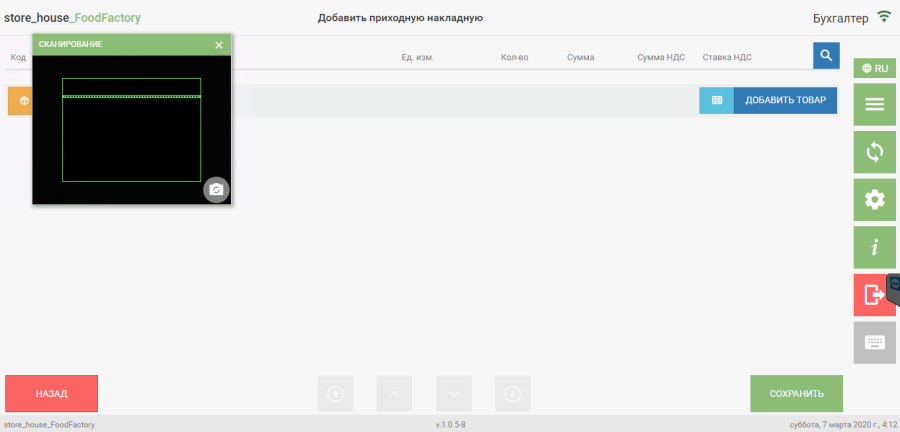 If there are several cameras in the device, you need to configure the browser so that the required camera opens by default. For scanning, point the camera at the barcode so that it is within the green frame.
 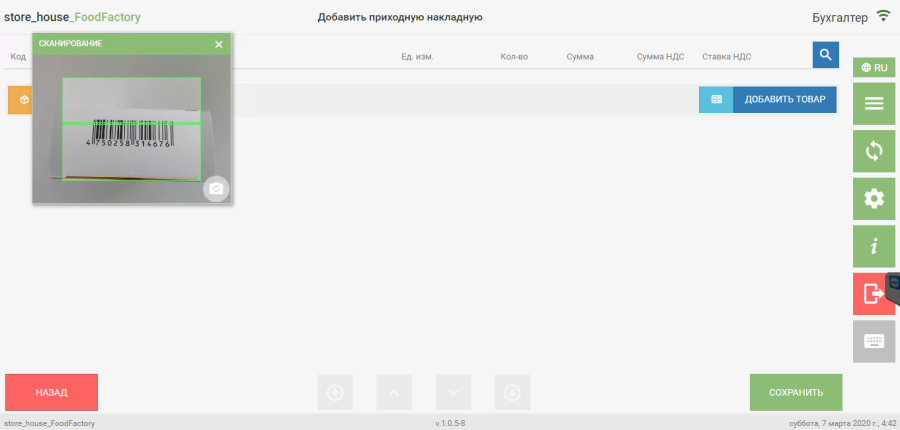 Barcode recognition occurs in photo mode. During scanning, the user sees video, but a snapshot is taken every half second and sent to the server, and until the snapshot quality allows the barcode to be recognized, the goods item will not be added. Thus, the barcode recognition speed depends on the camera quality and its focusing speed. If the goods item is found by the barcode in the database, it will be added to the delivery note with the unit of measurement for which the barcode is defined.
 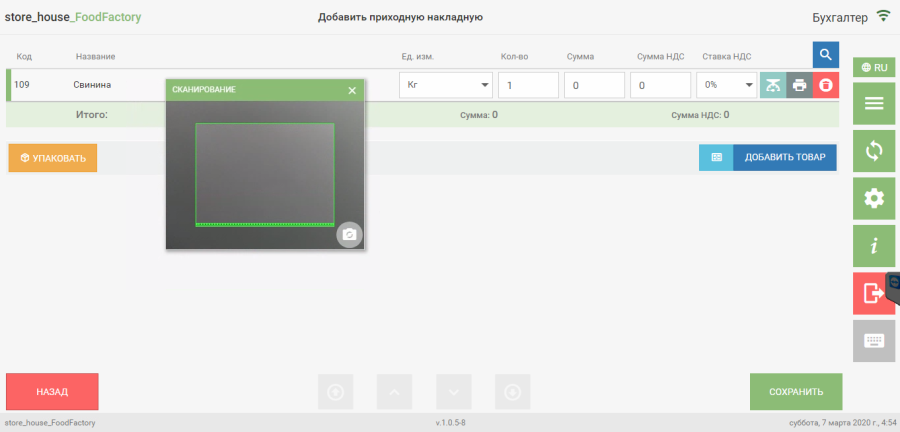 Rescanning of the same barcode will increase the goods item quantity by 1, unless the setting "Add Scanned Goods Item as Separate Line" is set.
If this flag is set, when scanning the same barcode into the delivery note, the goods item will be added as a separate line. To merge lines with the same goods item, click the [PACK] button. In r_k StoreHouse Pro, documents will be uploaded with the number of lines specified when creating the document in FoodFactory.
If necessary, you can edit the values of the Q-ty, Sum, and VAT Amount fields. If the goods item is not found by the barcode, the system will display a corresponding message. 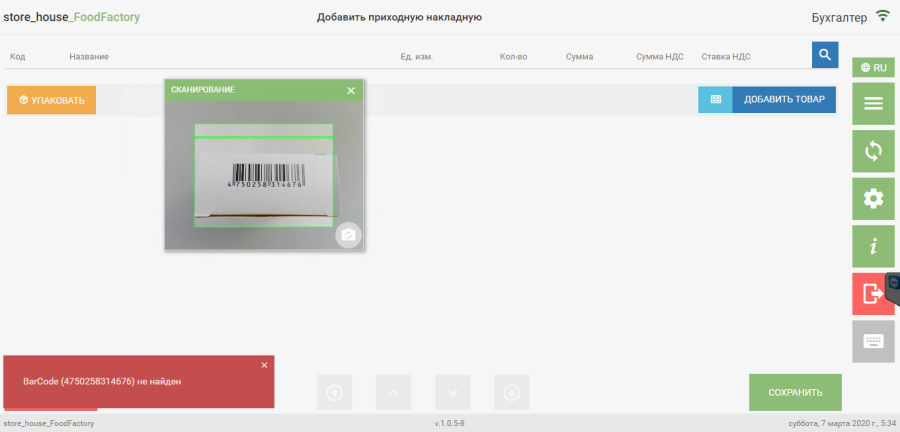 If the barcode was defined for a goods item synonym, the addition to the delivery note will occur via the synonym (see r_k StoreHouse Pro User Guide). Weight and single-item labels, printed from the program in the main menu item Label printing, can also be used to enter goods by barcode. Scanning labels is described in section Reading a Barcode Using a Scanner.
Third-Party System Barcodes
Starting from version 1.0.10.28, the ability to work with third-party system barcodes in FoodFactory has been added. It is possible to create documents with weight and single-item goods.
If it is necessary to receive goods whose barcode was not created in r_k StoreHouse Pro, for this, an attribute for the goods item must be created in Sdbman: with the identifier "ExtCode", data type "String", and name "External Code".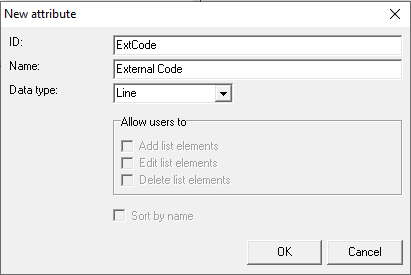
On the product card, fill in the "External Code" attribute, specifying the goods code of the third-party system – this can be either a weight or a single-item goods item.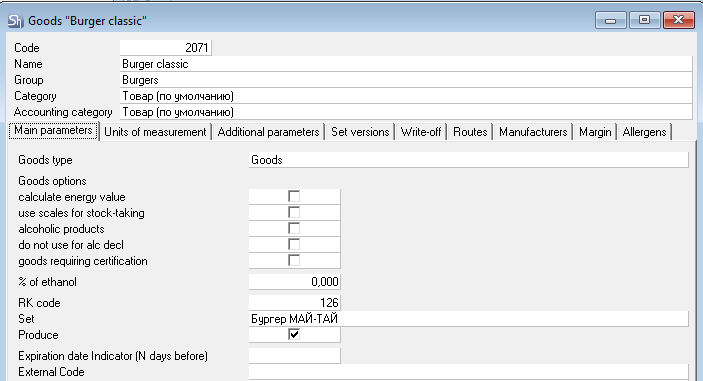
The standard mask is used for parsing the barcode and for searching for the goods item. |
After scanning the barcode, the system recognizes the r_k StoreHouse Pro goods item by the "External Code".
In case of a match between the "External Code", the r_k StoreHouse Pro goods code, and the RK code, or only two of these code variants, the system will prompt you to select the required goods item.