Balance Statement
The Balance Statement report provides data on product stock at the selected department or departments, indicating prices, amounts, and taxes for the goods.
For each product in the Stock Statement, the References to goods report (goods movement report) can be invoked. To do this, call the context menu from the row with the desired product and select the "Goods Movement" command.
Balance Statement - Filter
Balance Statement filter: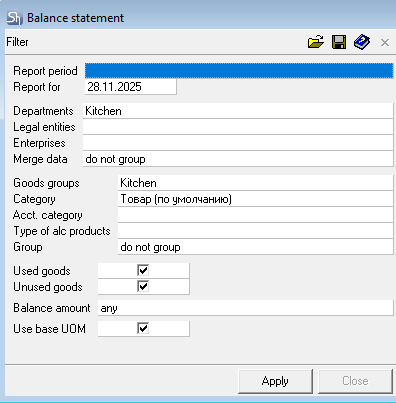
Parameters of the report filter "Report As Of", "Departments", "Legal Entities", "Enterprises", "Goods Groups", "Category", "Accounting Category", "Type of Alc. Product" and "Report Currency" are filled using standard methods.

Product stock is calculated as of the morning of the specified date (i.e., documents for the specified date are not used in the report). If the Report As Of field is not filled, the data in the report will be displayed as of the current moment, taking into account all documents entered for the current date.
Additional filter fields:
Used Goods — this flag is set if you want to generate a report for all used goods participating in document flow.
Unused Goods — this flag is set if you want to generate a report for all unused goods that do not participate in document flow.
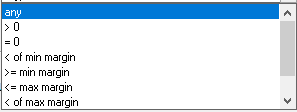
Margin (Stock) Quantity — select from the dropdown list which goods with what remaining quantity to display in the report. Stock level (margin level) rules can be set on product cards.
Use Base UOM — by default, all reports involving goods are generated in units of measurement "for reports". The "Balance Statement" report can be generated in the "base" unit of measurement. To do this, set the corresponding flag in the filter.
After filling the filter, to generate the balance statement, press the [Apply] button.
Balance Statement - Content
Balance Statement report — Balance Statement window: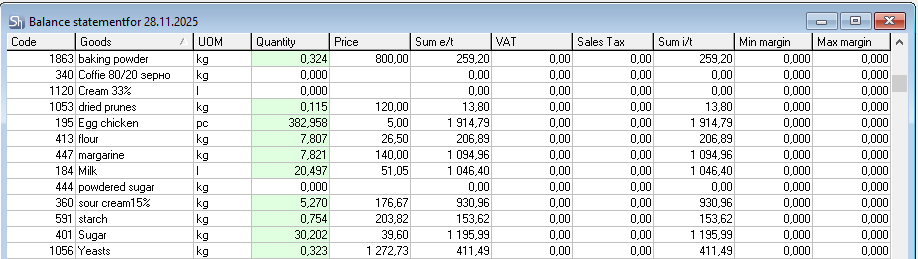
The figure shows the report grouped by departments and goods groups.
Code field — contains the item number of the good in the goods catalog.
Goods field — contains the name of the good.
UOM — unit of measurement of the good for generating reports or the base unit of measurement if the corresponding flag was set in the report filter.
Quantity — quantity of the goods in stock. A cell with a red background indicates stock less than the minimum margin (stock level). Green — greater than the maximum margin (stock level).
Price — this field indicates the average cost price of the good, calculated as of the report generation date.
Sum e/t — total amount excluding taxes for the goods item stock, calculated as of the report generation date.
VAT — this column indicates the amount of value-added tax for the goods item stock, calculated based on receipt notes.
Sales Tax — this column indicates the amount of sales tax for the goods item stock, calculated based on receipt notes.
Sum i/t — total amount including taxes for the goods item stock, calculated as of the report generation date.
Min. margin (stock) — minimum stock of the goods item, specified on the product card for the department from the filter. If N departments are specified in the filter and the grouping method "by departments" is not selected, then this field will display the total quantity of the minimum stock for all departments selected in the filter.
Max. margin (stock) — maximum stock of the goods item, specified on the product card for the department from the filter. If N departments are specified in the filter and the grouping method "by departments" is not selected, then this field will display the total quantity of the maximum stock for all departments selected in the filter.
Minimum and maximum product margins (stock levels) are set for the base unit of measurement on the product card.
If the report is generated in units of measurement "for reports", and for the goods item this unit of measurement does not correspond to the "base" one, then the stock in the report will be recalculated into the "for reports" unit of measurement.
If the values of the minimum and maximum product margins (stock levels) are not set on the product card, then the minimum value = 0, the maximum — unlimited, and the field will remain "unfilled". With an "unfilled" maximum stock for at least one row in the report, it is impossible to calculate the "Total" for this field in the table.
Copy to Delivery Note
From the "Balance Statement" report, you can create delivery notes. For example, for conducting inventory or creating an internal transfer.
To create delivery notes, generate the "Balance Statement" report with the desired filter and use the context menu item "Copy to Delivery Note". 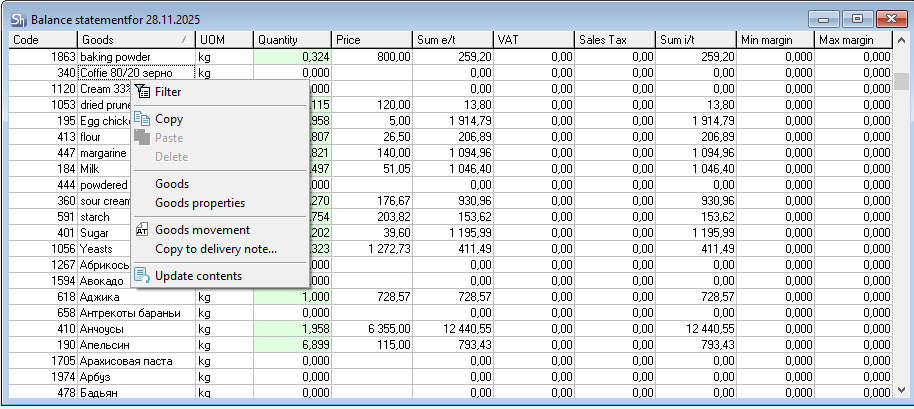 In the window that opens, define the copying parameters.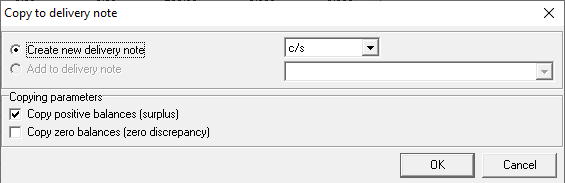
If the switch is set to Create New Delivery Note, select the type of delivery note from the list. If the switch is set to Add to Delivery Note, select a delivery note from the list of open delivery notes.
The "Add to Delivery Note" field will be active only if the delivery note to which goods are being added is open on the screen.
Using the flags "Copy Positive Balances (surpluses)" and "Copy Zero Balances (discrepancies)", define which report items will be added to the delivery note.
Also, the goods to be copied can be selected using [Ctrl] or [Shift].