Bill of Sale
The Bill of Sale report provides information on the results of processing sold goods and services. For each sold item, purchase and sales amounts excluding and including tax (e/t and i/t) are displayed, as well as markup and foodcost. The report is generated based on Requests.
Bill of Sale - Filter
The filter for the Bill of Sale report:
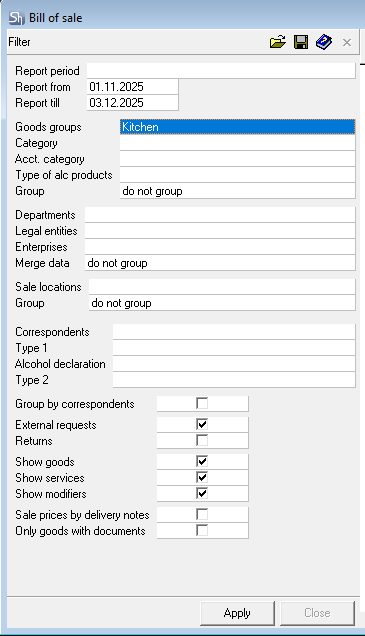
The filter parameters "Report from ... to...", "Departments", "Legal Entities", "Enterprises", "Goods Groups", "Correspondents", "Report Currency" are filled in using standard methods.
Additional filter fields:
Sale locations – in this field, you can select the points of sale whose requests will be used to generate the report.
Group By – if necessary, select the method for grouping the report data output in this field: Do Not Group or By Sale locations.
Group by Correspondents – check this box if you want the data in the report to be grouped by correspondents.
External Requests/Returns – use the flags to define for which type of requests the report should be generated. Setting one of the flags is mandatory.
Show Goods/Show Services – use the flags to define which type of goods should be displayed in the report. Setting one of the flags is mandatory.
Show Modifiers – use this flag to define whether to display product modifiers or not.
Sale prices by delivery notes – when this flag is set, sales amounts will be taken from the expenditure/receipt delivery notes created based on the requests, not from the requests themselves. This may lead to discrepancies between the data in the requests and the report if "write-off at cost" or "write-off with a cost coefficient" was used.
Only Goods with Documents – when this flag is set, the report will only include those goods for which "closing delivery notes" have been created in the requests. For external requests – an expenditure delivery note or a receipt payment document (for services). For returns – a receipt delivery note or an expenditure payment document (for services).
After filling out the filter, to generate the Bill of Sale, click the Apply button.
Bill of Sale - Content
The Bill of Sale report table with all groupings: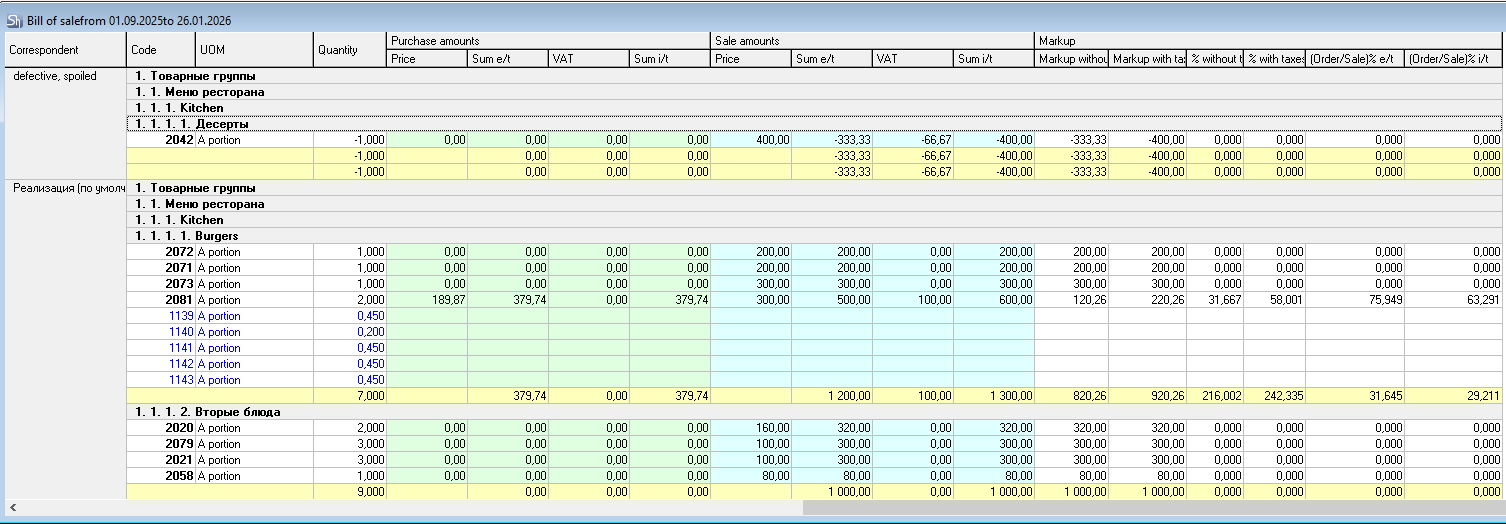
Groupings on the left:
Group – the selected grouping method in the filter based on your organization's details (Department or Enterprise or Legal Entity).
Sale location – if the "by sale locations" grouping is set in the filter.
Correspondent – if the "by correspondents" grouping is set in the filter.
Groupings vertically:
Goods Group – if the "by goods groups" grouping is set in the filter.
Table fields:
Product – this field displays the name of the goods/service.
UOM – contains the name of the goods item's unit of measurement for which the Report flag was set in the product card on the Units of Measurement tab.
Quantity – this field displays the quantity of the sold goods/service.
Purchase Amounts – the following values are displayed in this section of the table header:
Price – purchase price of the goods;
Sum e/t – purchase amount excluding taxes;
VAT – purchase value-added tax;
Sales Tax – purchase sales tax;
Sum i/t – purchase amount including taxes.
Sale Amounts – the following values are displayed in this section of the table header:
Price – sales price of the goods;
Sum e/t – sales amount excluding taxes;
VAT – sales value-added tax;
Sales Tax – sales sales tax;
Sum i/t – sales amount including taxes.
Markup – the following values are displayed in this section of the table header:
Markup e/t – markup amount on the purchase price excluding taxes;
Markup i/t – markup amount on the purchase price including taxes;
% e/t – markup percentage on the purchase price excluding taxes;
% i/t – markup percentage on the purchase price including taxes;
(Pur/Sale)% e/t – ratio of purchase and sales prices as a percentage excluding taxes;
(Pur/Sale)% i/t – ratio of purchase and sales prices as a percentage including taxes.
Modifiers in the "Bill of Sale" are displayed in blue under the dish they are associated with. The cost of modifiers is included in the cost of the dish.
Returns in the "Bill of Sale" are displayed with negative values, as these amounts must be subtracted from the sales amount.
If both sales and returns fall under the specified filter, the report will display the sum (taking into account the sign) for each product.
If the filter specifies the display of services, these items will appear in the report with purchase amounts equal to 0.