Counterparty Analysis
This report contains summary data on incoming and outgoing goods transactions for selected correspondents, with the option to group by correspondents.
Counterparty Analysis - Filter
The filter for the Counterparty Analysis report with the By Departments switch enabled:
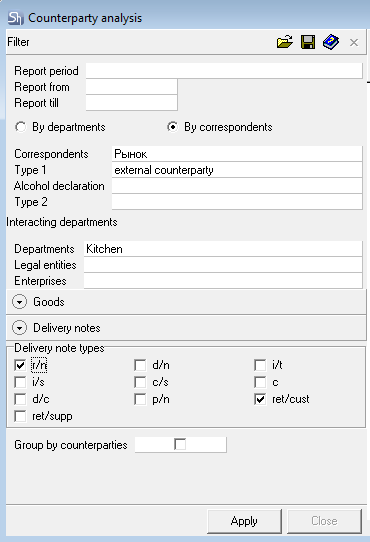
The filter parameters "Report from ... to...", "Departments", "Legal Entities", "Enterprises", "Goods Groups", "Category", "Acct. Category", "Type of Alcoholic Products", "Correspondents", "Report Currency" are filled in using standard methods.
Additional filter fields:
The By Departments switch – this switch is set if you want to configure a filter for interacting departments.
The By Correspondents switch – this switch is set if you want to configure a filter for correspondents interacting with the departments. The filter for the Counterparty Analysis report with the By Correspondents switch enabled:
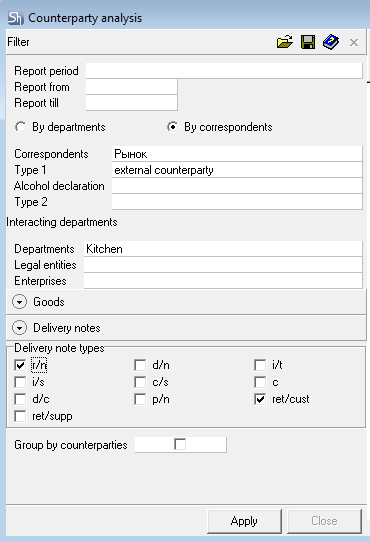
In the Interacting Departments field, the Departments, Legal Entities, and Enterprises fields are also filled in.
In the Interacting Correspondents field, it is filled in in the standard way.
The Delivery Notes settings block can be opened by clicking the button  . Opened settings block:
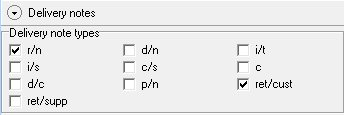
Delivery Note Types – in this area of the filter, you can select the types of delivery notes involved in goods movement for the report.
Group by Correspondents – check this box if you want the data in the report to be grouped by correspondents. When this flag is set, invoices that do not contain correspondents are not included in the report generation.
After filling out the filter, to generate the report, click the [Apply] button.
Counterparty Analysis - Content
The Counterparty Analysis report without grouping:
The Counterparty Analysis report with the By Departments switch enabled, grouped by departments and with the Group by Correspondents flag:
The grouping on the left by correspondents appears if the Group by Correspondents flag is set in the filter.
The Counterparty Analysis report with the By Correspondents switch enabled and the By Correspondents flag: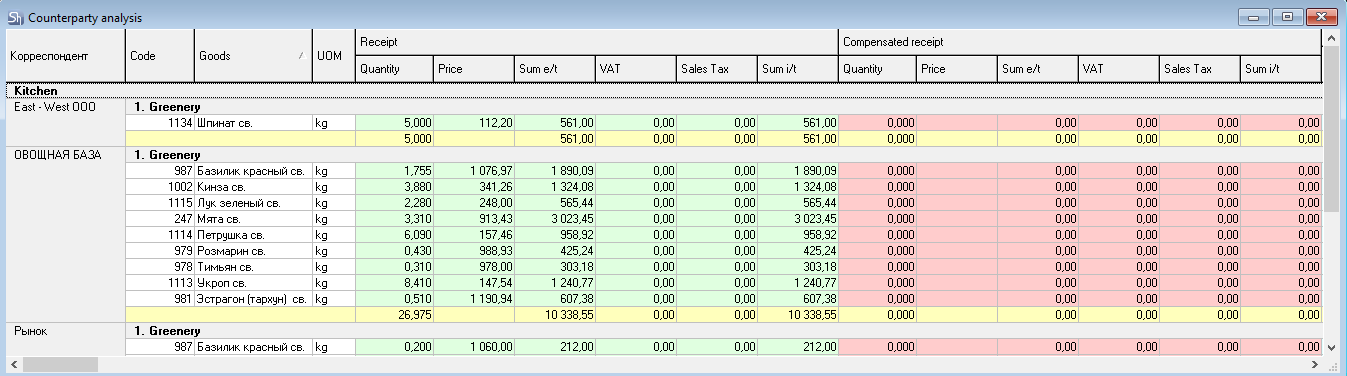
Code – this field displays the goods item code.
Goods – this field displays the goods item name.
UOM – contains the name of the goods item's unit of measurement for which the Report flag was set in the product card on the Units of Measurement tab.
The Receipt table area contains the following values:
Quantity – the quantity of goods received at the departments selected in the report filter.
Price – the price of the received goods;
Sum e/t – the amount excluding taxes;
VAT – value-added tax;
Sales Tax – sales tax;
Sum i/t – the amount including taxes.
The Compensated Receipt table area contains the following values:
Quantity – the quantity of goods in compensation entries for the departments selected in the report filter.
Price – the price of goods in compensation entries;
Sum e/t – the amount excluding taxes in compensation entries;
VAT – value-added tax in compensation entries;
Sales Tax – purchase sales tax in compensation entries;
Sum i/t – the amount including taxes in compensation entries.
The Expenditure table area contains the following values:
Quantity – the quantity of goods written off from the departments selected in the report filter;
The Purchase Amounts column group:
Price – the purchase price of the goods;
Sum e/t – the purchase amount excluding taxes;
VAT – purchase value-added tax;
Sales Tax – purchase sales tax;
Sum i/t – the purchase amount including taxes;
The Sales Amounts column group:
Price – the sales price of the goods;
Sum e/t – the sales amount excluding taxes;
VAT – sales value-added tax;
Sales Tax – sales sales tax;
Sum i/t – the sales amount including taxes;
Markup e/t and i/t – markup (excluding taxes and including taxes) in monetary terms;
Markup e/t and i/t (%) – markup (excluding taxes and including taxes) as a percentage.