The Extended Balance Statement provides data on product stock at the selected department or departments, indicating compensated entries and the quantity of goods written off into negative.
For each product in the Extended Stock Statement, the References to goods (Goods Movement) report can be invoked. To do this, call the context menu from the row with the desired product and select the "References to goods" command.
Extended Balance Statement - Filter
The filter for the extended balance statement does not differ from the filter of the stock statement.
Extended Balance Statement - Content
Extended Balance Statement window:

The figure shows a non-grouped extended balance statement.
Fields Code, Goods, UOM, Quantity, Price, Sum e/t, VAT, Sales Tax, Sum i/t, Legal Entity, Enterprise, Department, Min. and Max. margin are displayed the same as in the balance statement.
Written Off in Negative field — this column indicates the quantity of compensated entries for this good, i.e., how many times the goods item was "written off into negative".
Table area Compensated Quantities/Amounts:
Quantity — total quantity of the good specified in compensated entries for the entire period of the database operation, i.e., actually — the total quantity of missing goods item at the department.
Price — price of the good in compensated entries, calculated using the FIFO method.
Sum e/t — amount excluding taxes for the missing goods item, calculated using the FIFO method.
VAT — this column indicates the amount of value-added tax for the missing goods item, calculated using FIFO based on receipt notes.
Sales Tax — this column indicates the amount of sales tax for the missing goods item, calculated using the FIFO method based on receipt notes.
Sum i/t — amount including taxes for the missing goods item, calculated using the FIFO method.
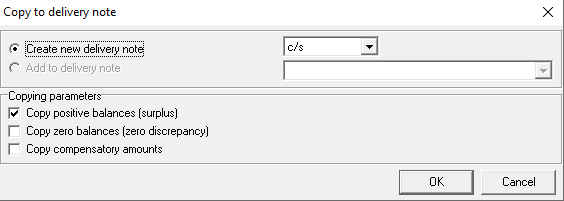
To "zero out" compensated entries, i.e., replenish the shortage of goods, it is necessary to copy the set of goods into a receipt document, using the main menu item "Document" — "Copy to Delivery Note..." or the Copy to Delivery Note... context menu item.
A dialog box will open: