Goods Movement (Goods Movement Reports)
The report contains a list of all documents in which the goods item selected for report generation appears. Also, the table displays data on the change in the goods item stock after the creation of the specified document, including information about created compensated entries for this goods item.
The report can be invoked from any document from the Goods page, by selecting a goods item and invoking the context menu, command Goods Movement.
Goods Movement: Filter
Filter for the Goods Movement report:
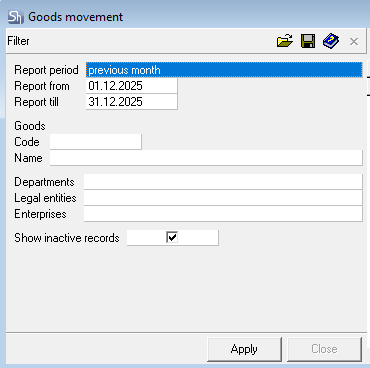
Report From ..., Report To ... — in these fields, enter the period for which you want to see the report;
To define the reporting period, you can use the predefined list of periods. To do this, select a value in the "Report Period" field.
To clear a filled date field, select the corresponding field and choose the Delete item from the context menu or press the [Delete] key on the keyboard.
In the Goods area, in the Code and Name fields, you need to select the goods item you are interested in, for which the report will be generated;
Department — if you want to see the movement of the goods item for a specific department, select the desired department from the dictionary;

Legal Entities — if the goods movement report should be built only for documents of certain own legal entities, select it from the list in this field.
Enterprises — in this field, you can define the enterprises for whose departments the goods movement report will be built.
Show Inactive Records — by setting/clearing this flag, the mode of displaying delivery notes can be set — including /excluding inactive documents.
After filling the filter, to generate the goods movement, press the [Apply] button.
Goods Movement: Content
Report (window Goods Movement):
The report table contains all documents in which this goods item participates. Displaying or removing from the table the parts Balance and Compensated Quantities/Amounts, as well as the fields Supplier, Recipient, Price, Sum e/t, VAT, Sales Tax, Sum i/t can be done using the Set up table... item of the context menu, invoked from the table "header". Also, in the item Set up table... it is possible, starting from version 5.130.627, to configure grouping of the report by the Date and Type fields.
Documents in the table are arranged in chronological order from top to bottom.
The Delivery Note part of the table contains columns:
Type — type of delivery note participating in the goods item movement;
Number — number of the delivery note participating in the goods item movement;
Date — date of the delivery note participating in the goods item movement;
Supplier — supplier according to the delivery note participating in the goods item movement;
Recipient — recipient specified in the delivery note participating in the goods item movement.
Price field — price per goods item, specified in the delivery note participating in the goods item movement.
Quantity — quantity of the goods item specified in the delivery note.
Sum e/t — amount for the document excluding taxes.
VAT — amount of value-added tax for the document.
Sales Tax — amount of sales tax for the document.
Sum i/t — amount for the document, including taxes.
The Balance area of the table contains columns:
Quantity — quantity of the goods item at the department, taking into account movement according to the delivery note specified in the left part of the table;
Price — stock price of the goods item, calculated using the FIFO method;
Sum e/t — amount excluding taxes of the goods item stock;
VAT — amount of value-added tax of the goods item stock;
Sales Tax — amount of sales tax of the goods item stock;
Sum i/t — amount, including taxes, of the goods item stock.
The Sale Amounts area of the table contains data on the sale amounts of expenditure documents.
Price — sale price of the goods item from expenditure documents of goods movement;
Sum e/t — sale amount excluding taxes of the goods item from expenditure documents of goods movement;
VAT — amount of value-added tax of the goods item from expenditure documents of goods movement;
Sales Tax — amount of sales tax of the goods item from expenditure documents of goods movement;
Sum i/t — amount, including taxes, of the goods item from expenditure documents of goods movement.
The Compensated Quantities/Amounts area of the table contains data on created compensated entries for the delivery note specified in the left part of the table:
Quantity — quantity of the goods item specified in the compensated entry for the delivery note specified in the left part of the table;
Price — price of the goods item in the compensated entry, calculated using the FIFO method;
Sum e/t — amount excluding taxes of the goods item in the compensated entry;
VAT — amount of value-added tax in the compensated entry;
Sales Tax — amount of sales tax specified in the compensated entry;
Sum i/t — amount including taxes specified in the compensated entry.