Before starting the printing process, preliminary printer settings must be configured.
If only labels are printed at this workstation, you must enable "Label Printing Mode" in the settings. |
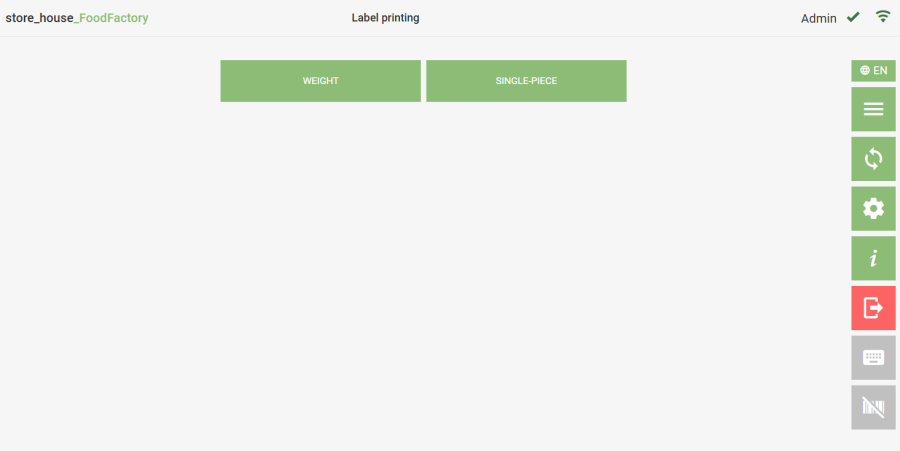
To print a goods item label, select the "Label Printing" operation from the list of Operations in the Main Menu.
 In the window that opens, select the type of goods item for label printing: Weight – for goods whose quantity will be read from scales. Single-piece – the quantity of this goods item on the printed label will always be 1 of the selected UOM.
The product code from r_k StoreHouse Pro is used to generate the barcode. If the setting "Use RK Menu Item Code" is enabled, the RK dish (menu item) code will be used, provided this field is filled in on the r_k StoreHouse Pro product card.
Label layouts can be edited and new ones created using the ReportDesigner.exe editor (located in the FoodFactory server directory). The layouts used for printing labels are stored in the Sticker folder. To be able to select a new layout for label printing, after creation, it must be saved to this same folder.