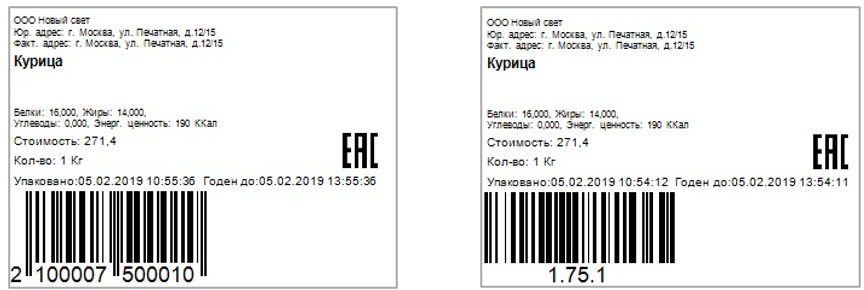
Printing a Goods Item Label from a Document
To be able to print a goods item label from a document, preliminary printer settings must be made. To print a label, click the button  .
. 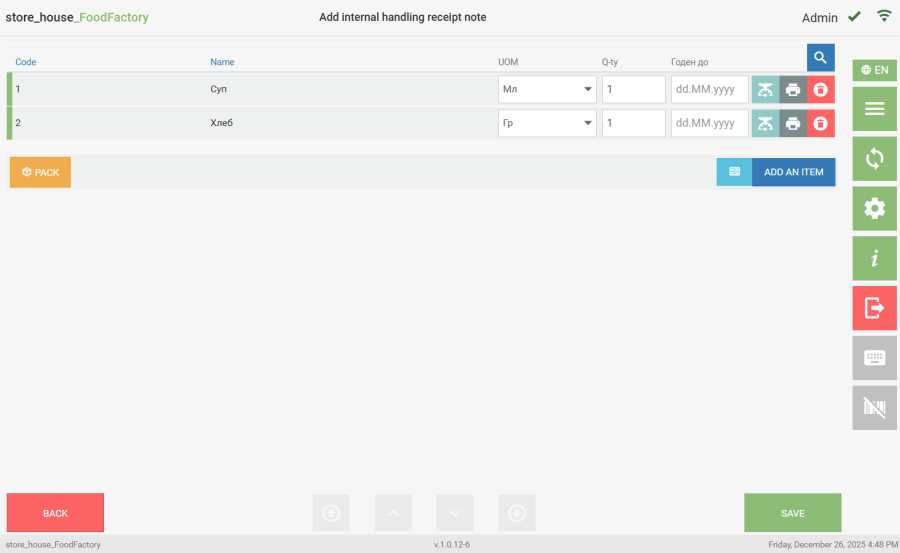 Further actions depend on the settings made.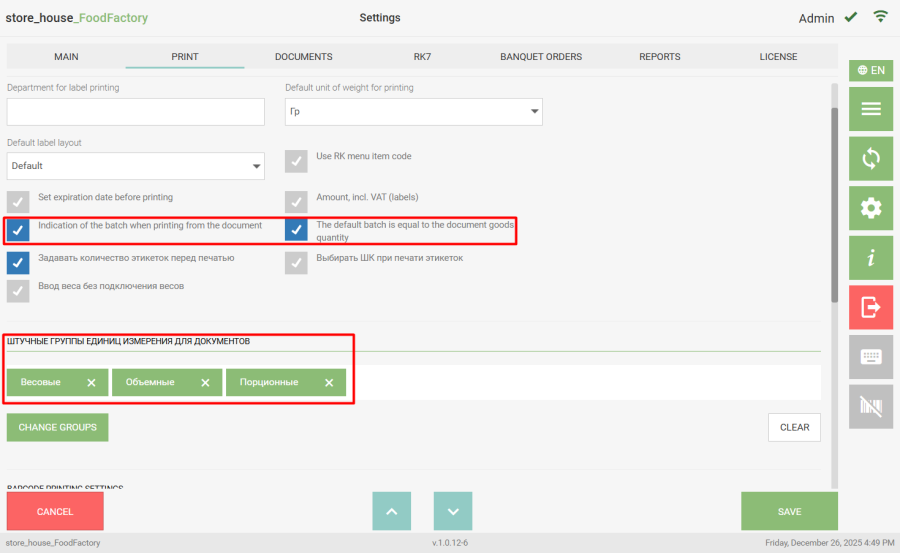
If the goods item UOM in the document is included in the "Single-piece UOM Groups for Documents" and the UOM is in the mapping for EAN13, then the quantity will be passed for printing without conversion relative to the weight UOM.
For Single-piece UOM Groups from documents, printing fractional quantities is not available. |
If a fractional quantity is specified for a Single-piece UOM, when clicking the print button, a warning message "For unit groups, fractional quantity is not allowed for the EAN13 label" will appear and the label with the fractional quantity will not be printed. To continue working with the document, close the message.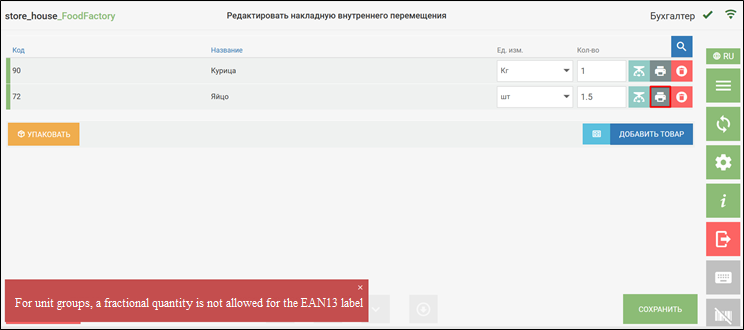
If the "Indication of the Batch when Printing from the Document" flag is not set, after clicking the button one label will be printed and a message will appear on the screen. 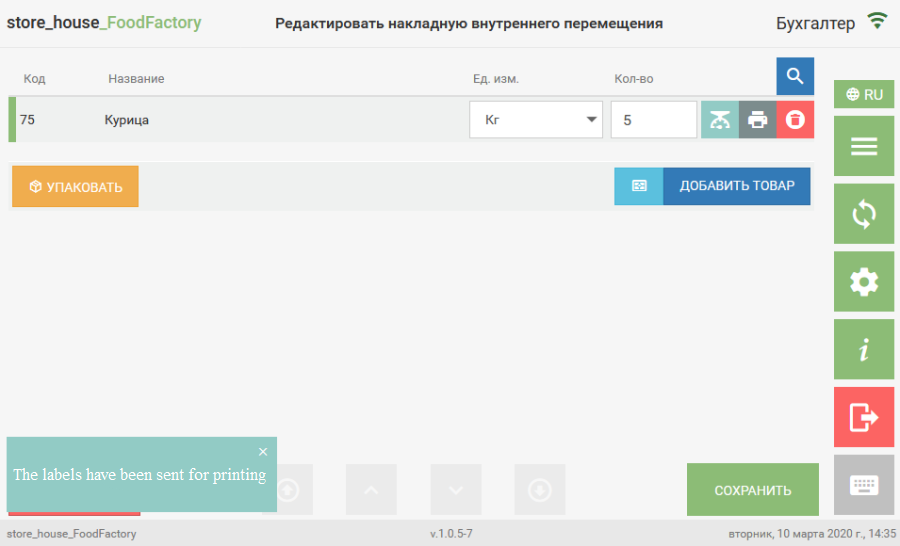 The printed label will indicate the quantity and unit of measurement of the goods item as in the document from which it was printed. The label layout printed will be the one selected as "default" in the print settings. If the "Indication of the Batch when Printing from the Document" flag is set, after clicking the button a window will open with a field where you need to specify the batch quantity for printing labels.
 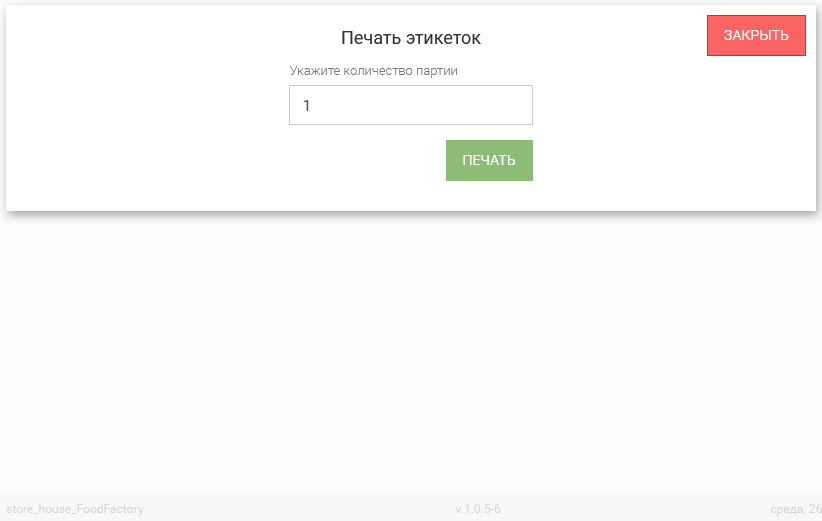 Let's consider examples:
- The goods item Eclairs was added to the document in a quantity of 40 pcs.
We click the button and in the opened window:
- We specify the batch quantity as 1. 40 labels with a goods item quantity of 1 pc each will be printed.
- We specify the batch quantity as 4. 10 labels with a goods item quantity of 4 pcs each will be printed.
- We specify the batch quantity as 7. 6 labels will be printed: 5 labels with a quantity of 7 pcs each and 1 label with a quantity of 5 pcs.
- The goods item Olivier Salad 2.500 kg was added to the document.
We click the button and in the opened window:
- We specify the batch quantity as 0.5. 5 labels with a quantity of 0.5 kg each will be printed.
- We specify the batch quantity as 1. 2 labels of 1 kg each and 1 label with a quantity of 0.5 kg will be printed.
If the "The Default Batch is Equal to the Document Goods Quantity" flag is set, after clicking the button a window for entering the batch quantity for printing labels will open, in which the goods item quantity from the document will be specified by default. 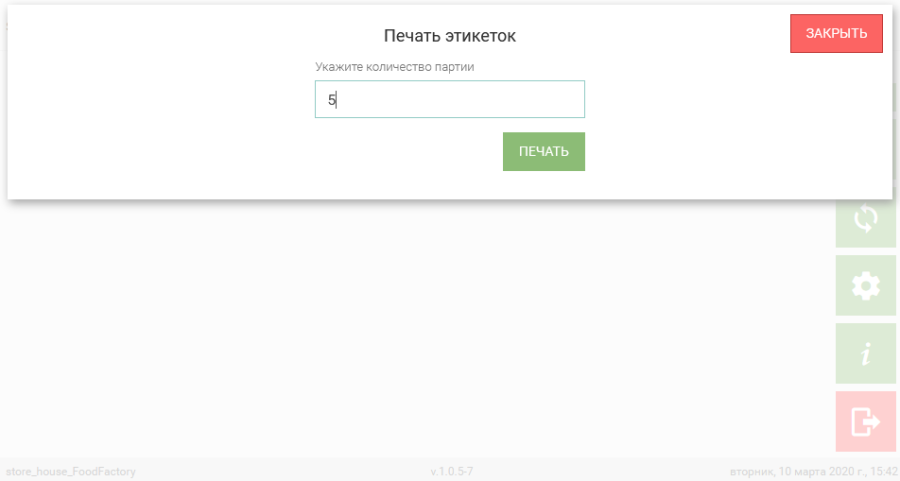
The "The Default Batch is Equal to the Document Goods Quantity" flag only works when the "Indication of the Batch when Printing from the Document" flag is enabled. |
The value in the batch quantity input field can be changed to any other quantity; the labels will be printed similarly to the described examples. If an expiry date is specified on the product card in r_k StoreHouse Pro, the label will indicate the date and time "Packed:" and "Expiry Date:". If no expiry date is specified, only the date and time "Packed:" will be printed on the label.