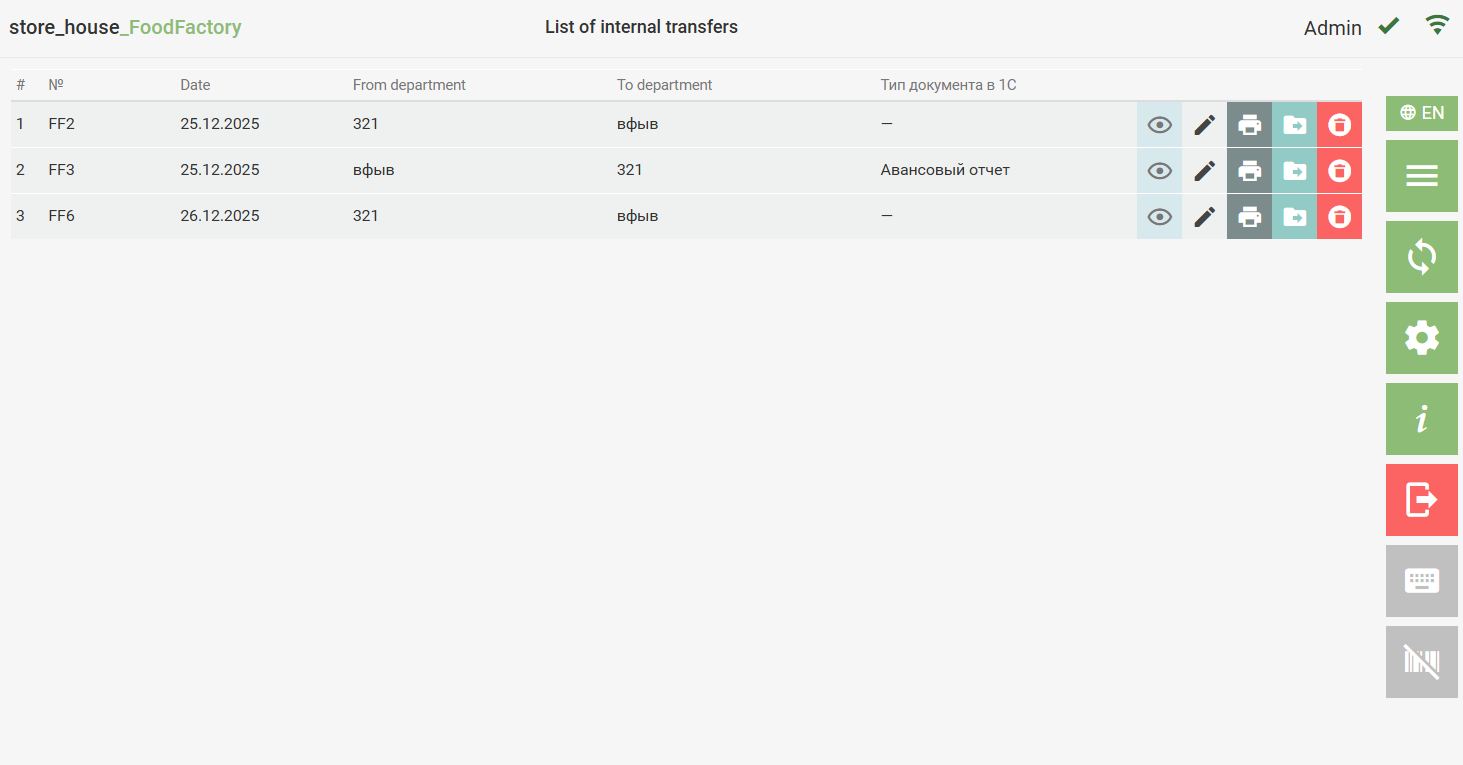
To print documents, you must first configure the printer for delivery notes.
To print a document, in the corresponding document list, click the button  for the desired document.
After this, a window for selecting a layout for printing this document will open. For each type of document, the corresponding print forms will be available for selection. Example of print forms for an expenditure delivery note:
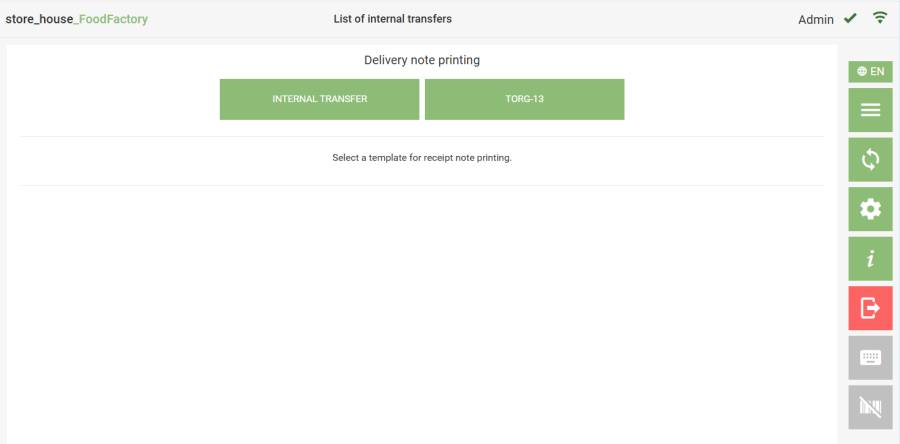 Documents that have not yet been uploaded to r_k StoreHouse Pro are available for printing (displayed in this list).
After selecting a print form, buttons for available actions with it will appear: print, preview, or open in PDF format.
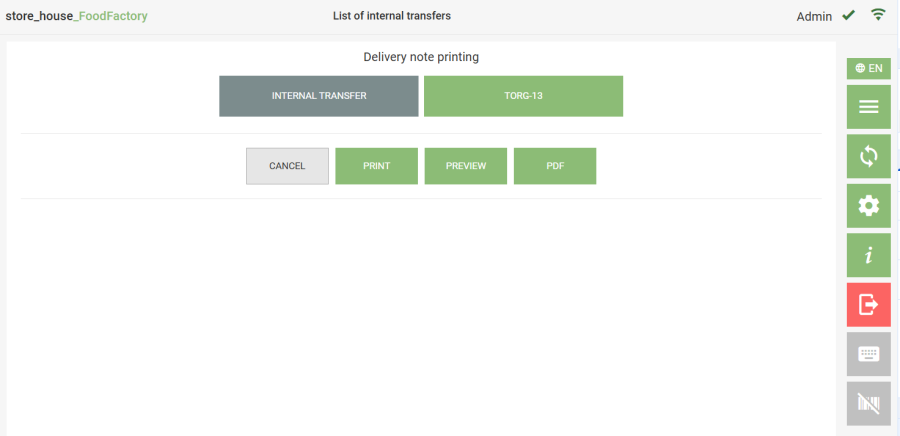 In the print form preview window of the document, you can also print it or open it in PDF format.
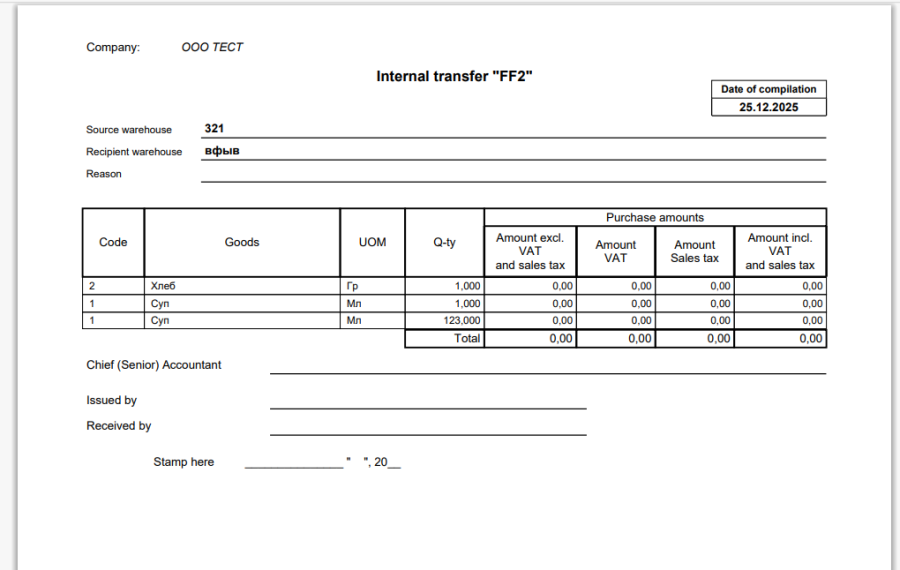
When selecting the [Print] function, printing will be done on the printer specified in the settings.
When selecting the [PDF] function and sending to print from the opened form, you can select any network printer.
