Printing Labels for Weighted Goods
The scales must be connected and configured in advance.
If the flag "Enter weight without connected scales" is enabled in the main print settings, it is possible to manually specify the weight of the goods item when printing labels for weighted goods, thereby eliminating the need to configure the scale server. To print a label for a weighted goods item, select the "Weight" type. 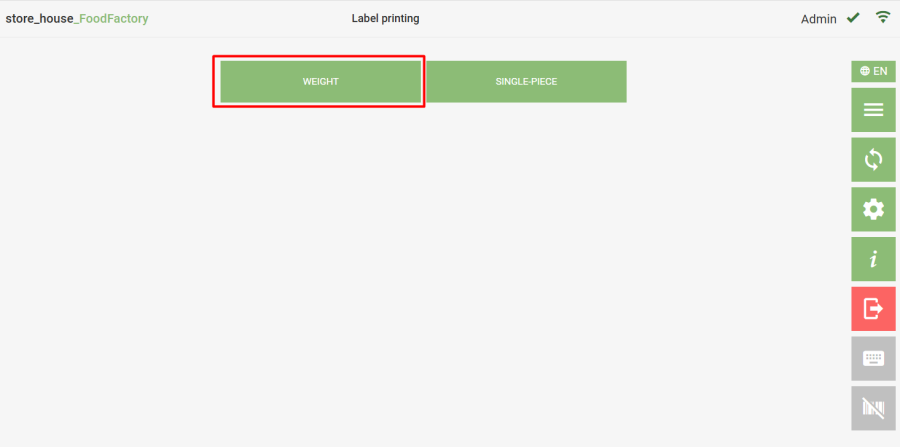
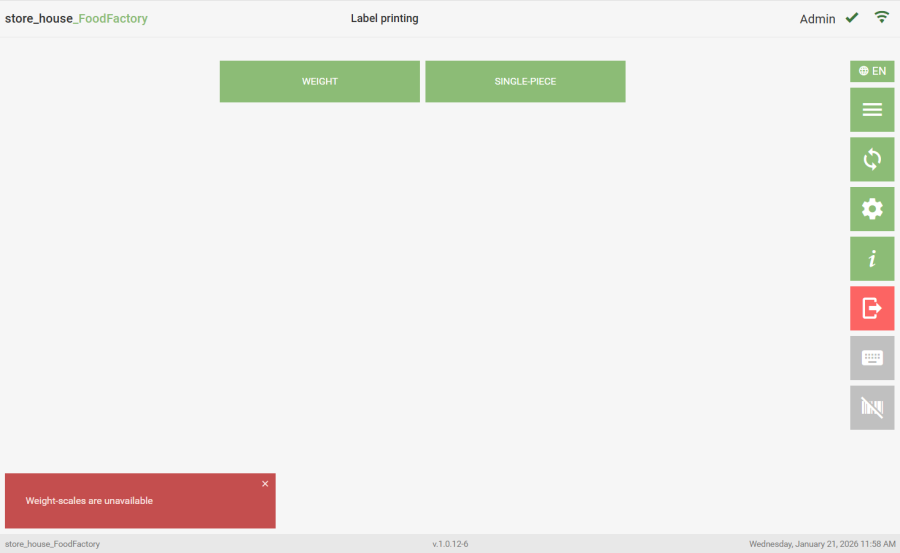
If the scale server is not running, clicking the "Weighted" button will display a message that the scales are unavailable. |
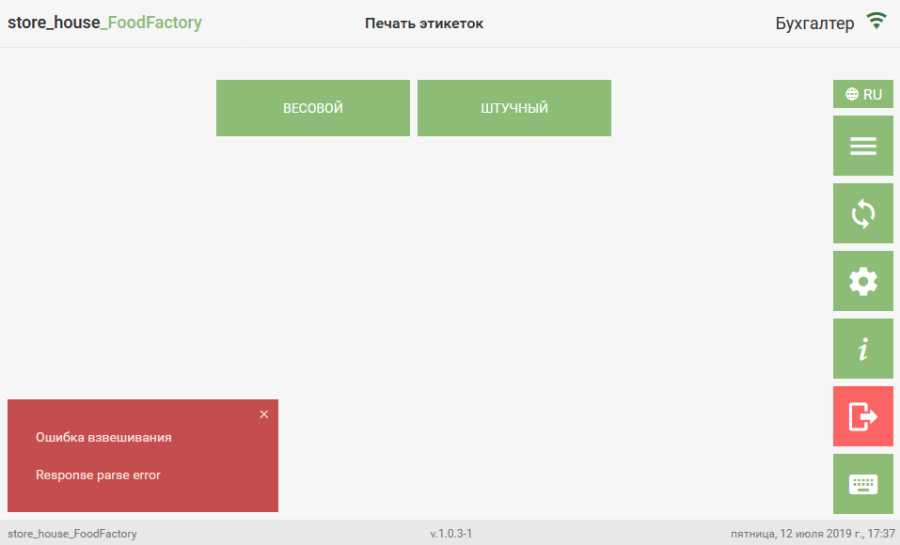
 If the scale server is running but the scales are turned off, an error message about weighing failure will appear after selecting the goods item.
  Place the goods item on the scales. If the scales are connected and configured correctly, the goods search mode will open, where you need to select the required goods item. A goods item unavailable for label printing will have a light grey button background.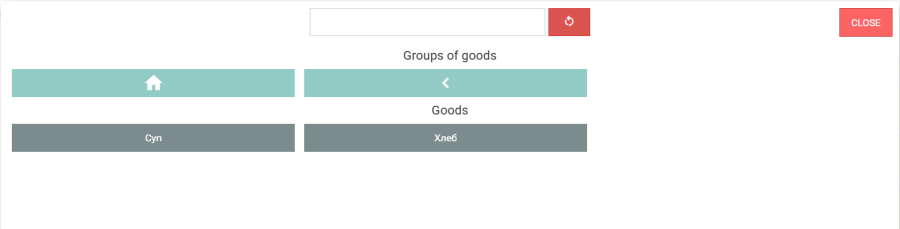
A goods item will be available for selection for printing a weighted label if: |
- The product card in StoreHouse5 contains the UOM specified in the print settings in the field "default weighted UOM for printing".
- The UOM used for printing is added to the list "UOM mapping (for printing barcodes on labels)" for the selected barcode printing mode Standard functionality (EAN13).
If the flag "Enter weight without connected scales" is enabled, the goods item weight is entered manually. After selecting the goods item, a window for entering the goods item weight will open.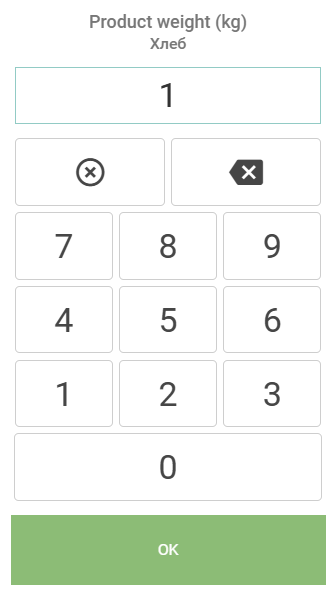 If the flag "Set Expiration Date Before Printing" was enabled in the print settings, and this parameter is not filled in on the StoreHouse5 product card, then after selecting the goods item, a window for entering the shelf life in hours for the selected goods item will open.
 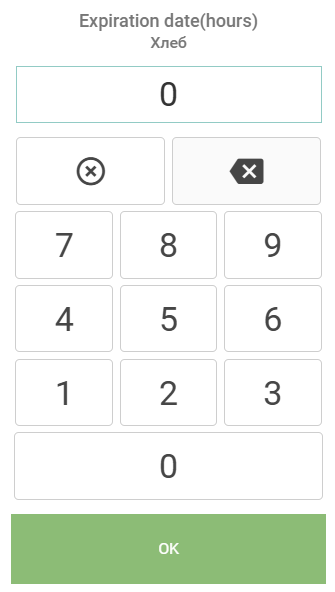 Enter the required shelf life (default value is 0) and click
  . If the shelf life is specified on the selected goods item's card in StoreHouse5, the shelf life entry window will not open, and regardless of the "Set Expiration Date Before Printing" setting, the shelf life from the product card will be used for printing the label. The shelf life is calculated as: "Packed" - the physical time of label printing "Expiry Date" - physical time of printing + number of hours of shelf life (either from the product card or entered manually). Next, the window for entering the number of labels for printing will open.
 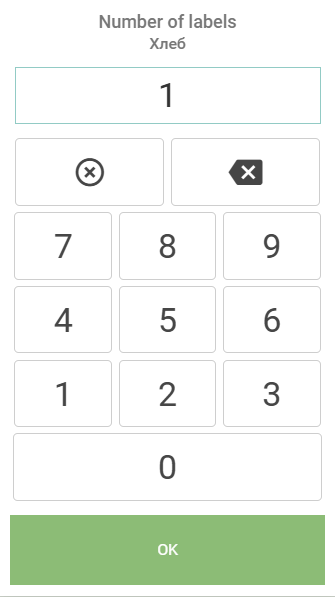 Enter the required quantity (default value is 1) and click . After setting all parameters for label printing, a window will open displaying their values and the label layout.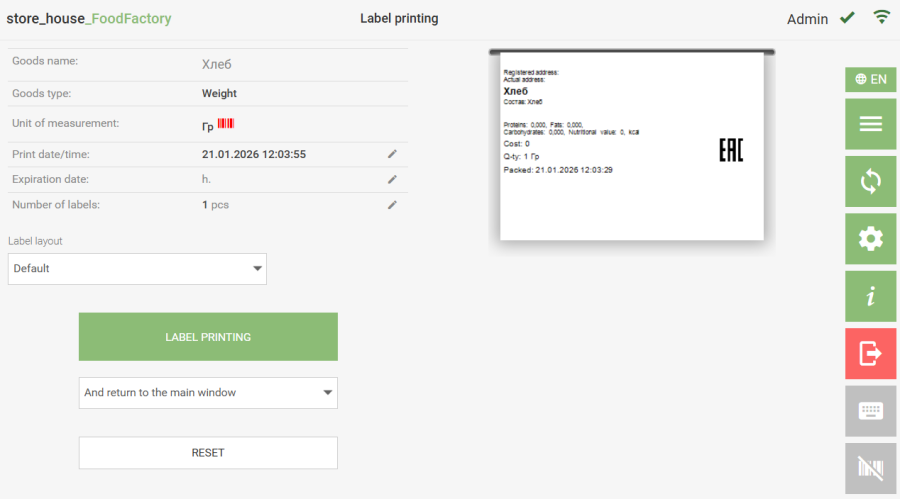
Data from the scales will be transferred to the "Goods Weight" field. The label will print the UOM specified in the settings. The "Shelf Life" and "Number of Labels" fields can be changed before printing by clicking the  button in the corresponding row and specifying the new value. After this, the updated data will be displayed in the layout.
If shelf life data is loaded from the r_k StoreHouse Pro product card, it cannot be changed. You can enter a different shelf life, but this data will not be saved. |
The goods item (dish) composition will be printed only for goods (dishes) that have a set in r_k StoreHouse Pro.
The composition will only be printed when FoodFactory and r_k StoreHouse Pro are working Online. This functionality is not available in Offline mode. |
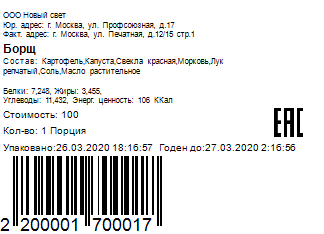
In the "Label Layout" field, you can select a layout for printing the goods item label. To do this, click on the "Label Layout" field and select the desired label layout from the list that opens. 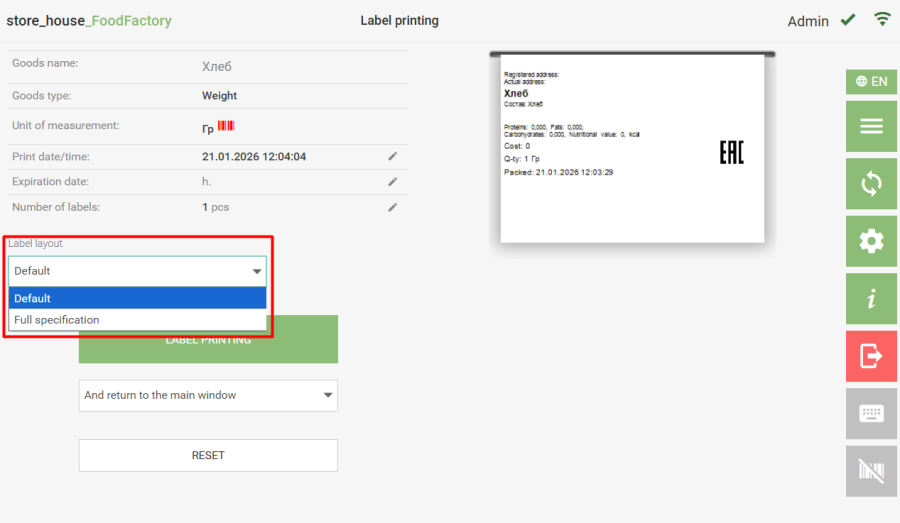 Label layouts can be edited or new ones created using the ReportDesigner.exe editor (located in the FoodFactory server directory). Initially, you can choose from two label layouts: "Default" and "Full Detail". These layouts differ only in the way the goods item composition is written. Consider an example: The set for the goods item "Borscht" includes the following goods: cabbage, red beetroot, potatoes, salt, and the semi-finished goods item "Zazharka". The set for the semi-finished goods item "Zazharka" includes carrots, onions, and vegetable oil. When selecting the "Default" label layout, the composition will list all ingredients included in the set of the goods item "Borscht", including goods included in the set of the semi-finished goods item "Zazharka": potatoes, cabbage, red beetroot, carrots, onions, salt, vegetable oil.
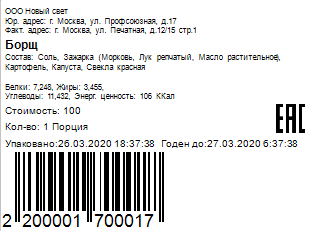
  When selecting the "Full Detail" label layout, the composition will list all ingredients included in the set of the goods item "Borscht", followed by the included semi-finished goods with their composition indicated in parentheses: salt, "Zazharka" (carrots, onions, vegetable oil) potatoes, cabbage, red beetroot.
  By default, the label layout selected in the print settings is set. If a layout different from the default one is selected for printing labels, it will be used until the end of the label printing session, i.e., until you return to the main menu or exit the program. The label layout contains information.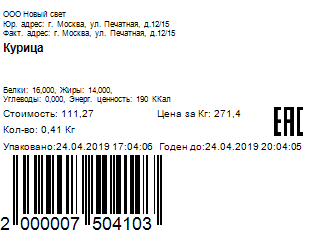
Information about the goods item's energy value and its price is taken for printing from the product card in r_k StoreHouse Pro. |
Price – the value is taken from the r_k StoreHouse Pro product card as the "sale amount" per base UOM. When determining the price, "exceptions by enterprises" are considered according to the department set for label printing. These settings also determine which value to use for printing: "Including taxes" or "Excluding taxes". Cost – the calculated cost for the weighted quantity of the goods item. If the base UOM of the goods item is not the "default weighted UOM for printing", the cost will be recalculated using the UOM conversion ratios from the r_k StoreHouse Pro product card. To print the label, click the "Print Labels" button. The labels will then be sent to the printer, and a message will appear on the screen. 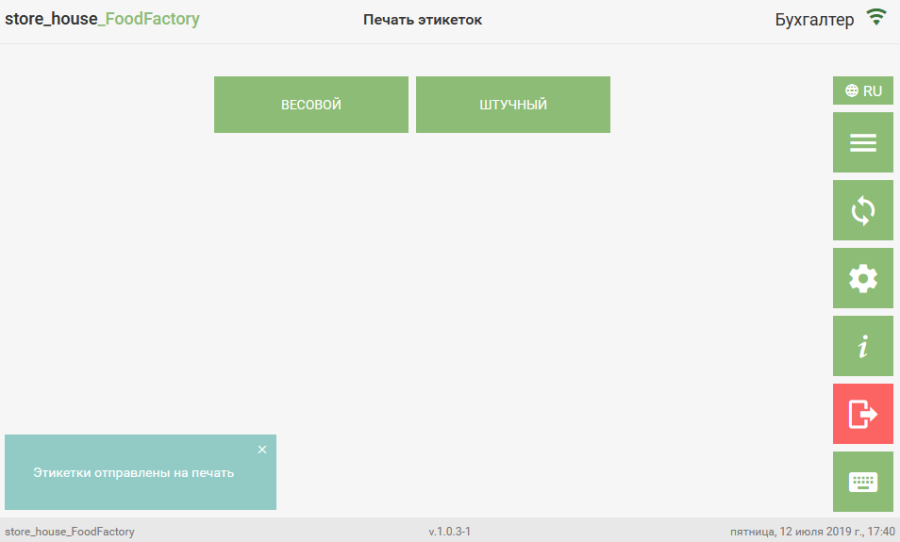 To determine which window opens after printing the label, select the next action in the field below the "Print Labels" button.
 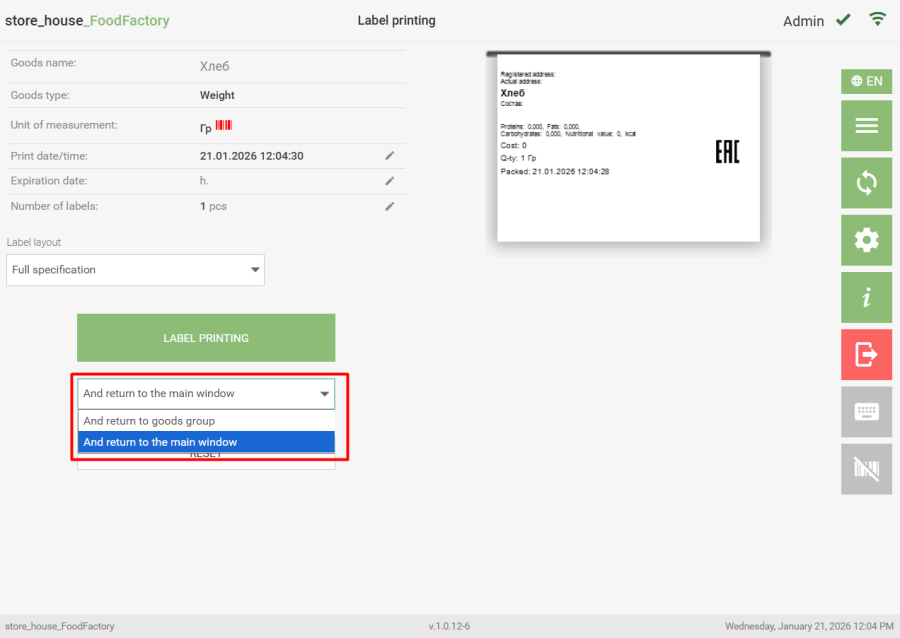 When selecting the option "And return to the goods group", after printing the label, the goods group from which the previous goods item was selected for label printing will open. When selecting the option "And return to the main window", the window for selecting the type of goods item for label printing will open.
  To close the label layout preview window and go to the window for selecting the type of goods item for label printing,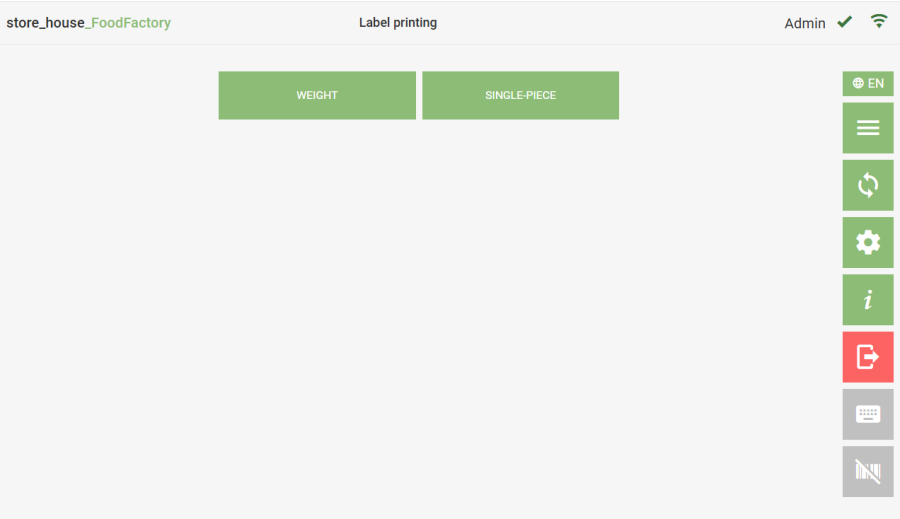
click the "Reset" button. 