To assign the same permissions to a group of users, define the required role in the properties of these users on the "Roles" tab (check the box next to the role with the necessary rights).
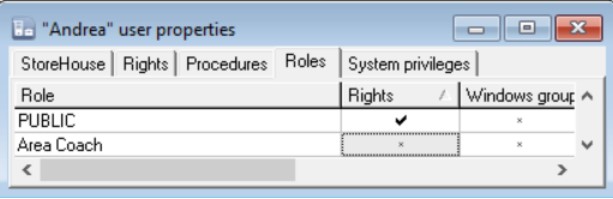
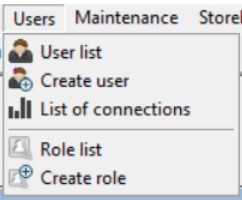
To view existing user roles in the Sdbman application, select the main menu item "Users" - "Role List".
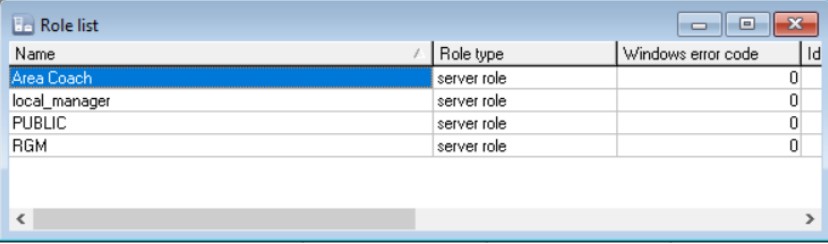
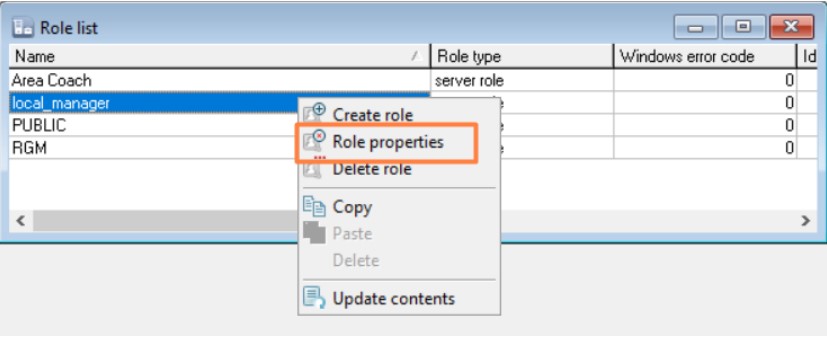
A list of existing roles will open.
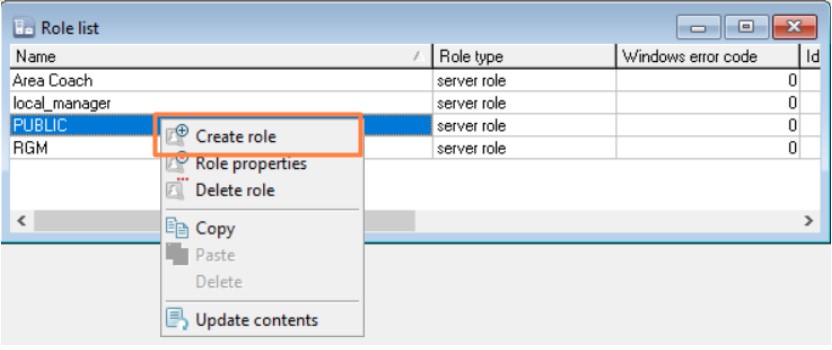
To create a new role, select the main menu item "Users" - "Create Role" or select the "Create Role" context menu item, or press the button  on the toolbar.
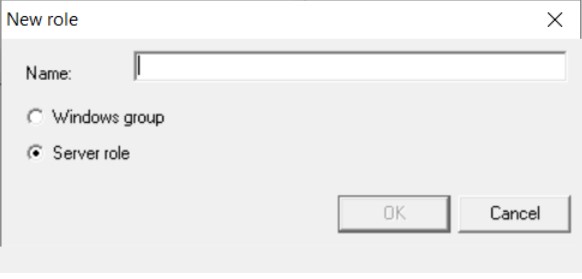
In the "New Role" window that opens, enter the name of the role being created in the "Name:" field, set the Server Role radio button, and press the "OK" button.
To configure role permissions, open it from the role list by double-clicking or press the button  on the toolbar, or select the "Role Properties" context menu item.
The "Role Properties" window will open, where you can define permissions on the "Rights" tab by checking the boxes in the appropriate fields.
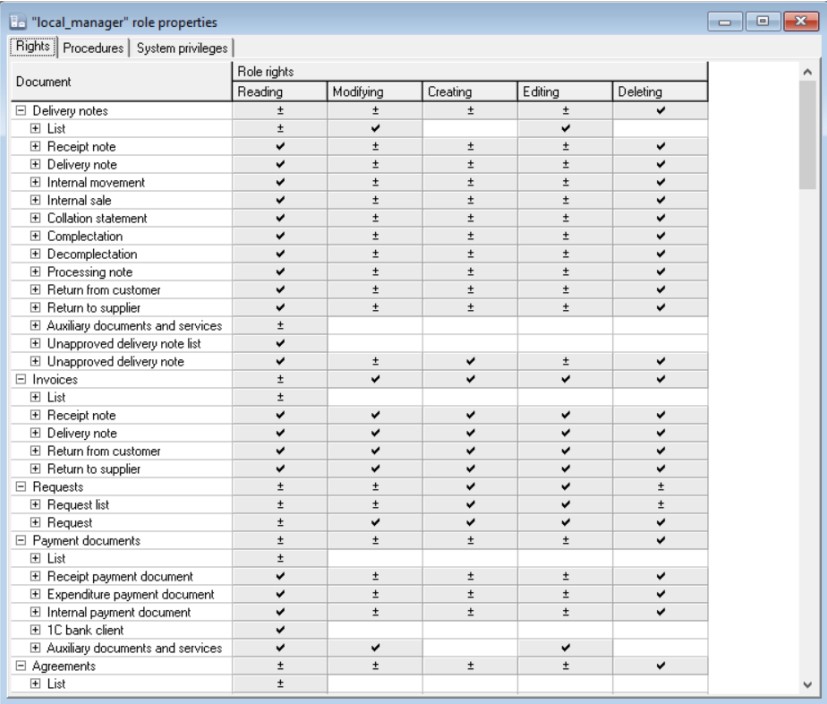
Assigning role permissions is done similarly to assigning user permissions.