Viewing the SH Pro Delivery Notes List
To view the list of r_k StoreHouse Pro delivery notes, select the "List of SH5 Delivery Notes" operation from the list of Operations in the Main Menu.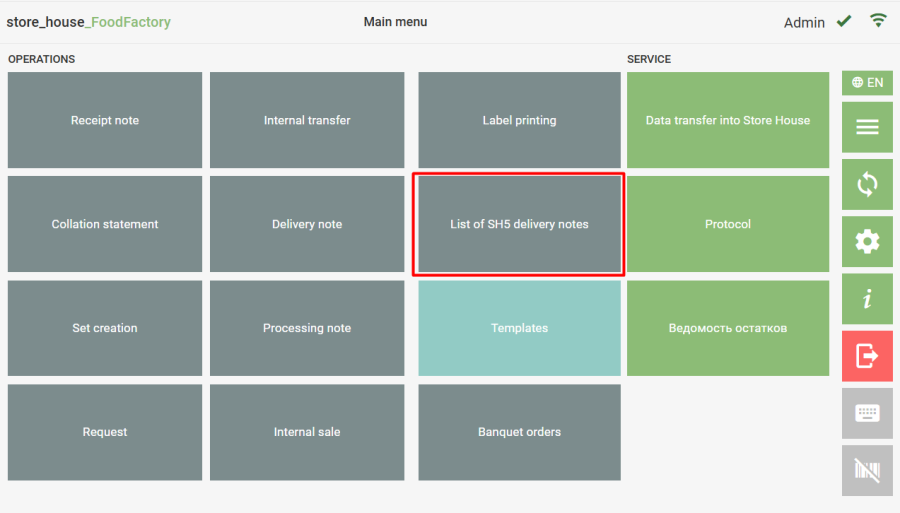 The SH5 delivery notes list will open.
 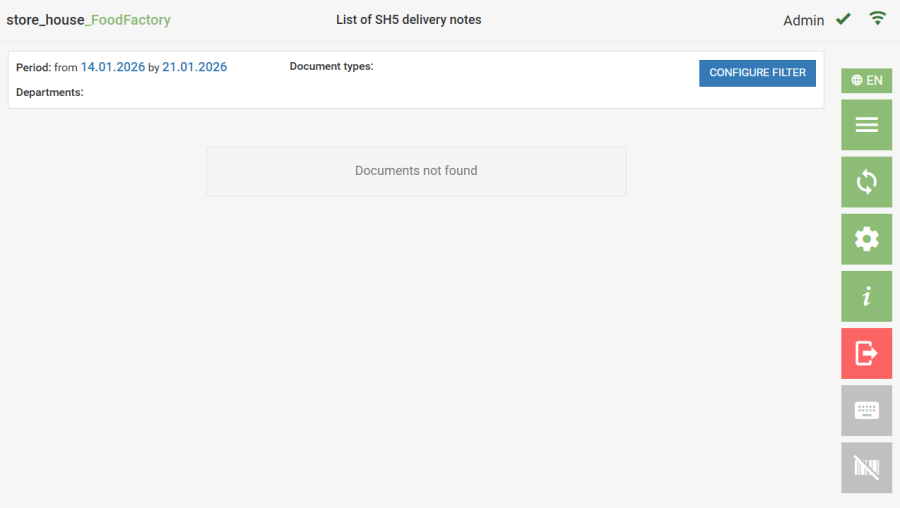 The SH5 delivery notes list contains the delivery note type, number, date, supplier name, department name, delivery note amounts, as well as view, edit, print, and copy buttons for each delivery note in the list.
The period for the SH5 Delivery Notes List is filled for the current date or for a period from the current date one week back, depending on the selected setting "Current date in the filter for delivery notes list". For easier perception of information, delivery notes are highlighted in different colors depending on the delivery note type (see the r_k StoreHouse Pro User Guide).
The table can be sorted by the "Date" column. The column is marked with a triangle (  /
/  ). Clicking on the name of this column will change the sort order (ascending/descending). In the upper part of the window, there is a delivery notes list filter. To fill the filter, click the "Configure Filter" button. The filter window will open.
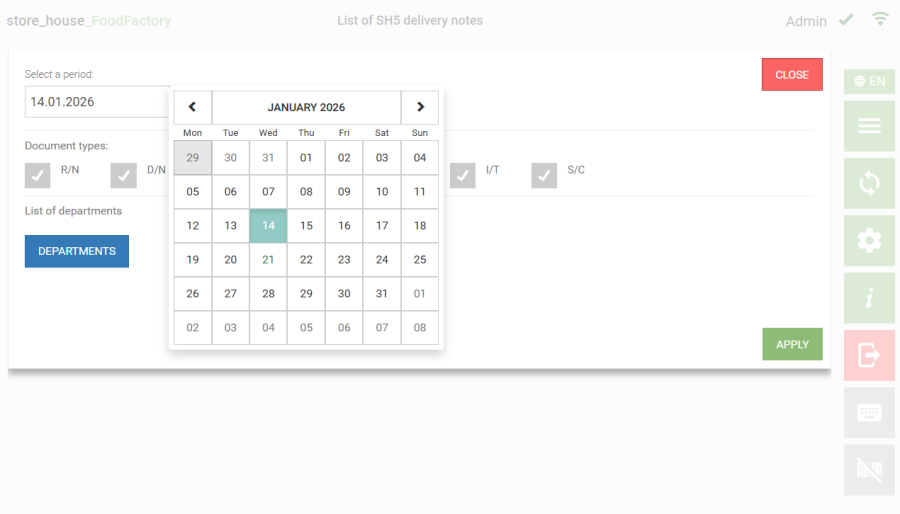
 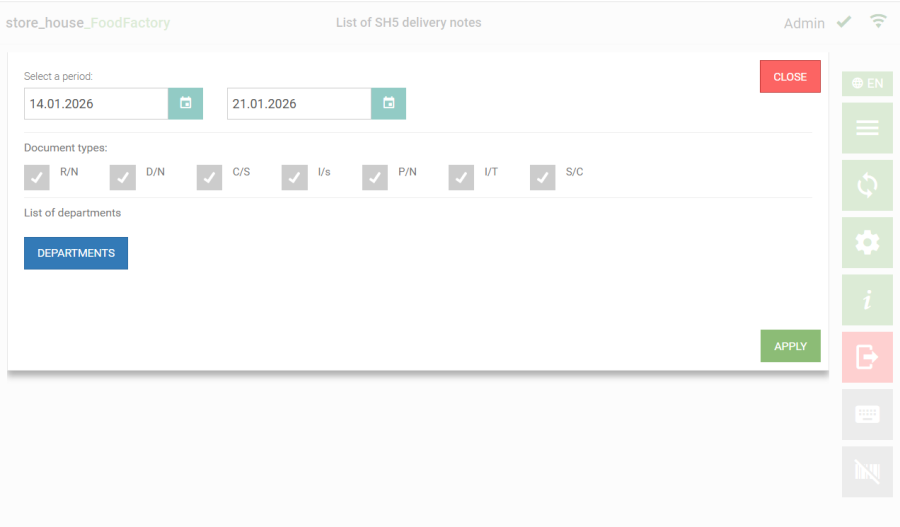 In the window that opens, you can set the required period. The end and start dates of the period are selected similarly. To do this, click the icon
  to the right of the date and select the desired date by clicking in the calendar that opens.
  In the "Document Types" area of the window, you can select the desired delivery note types by checking the box in the corresponding field.
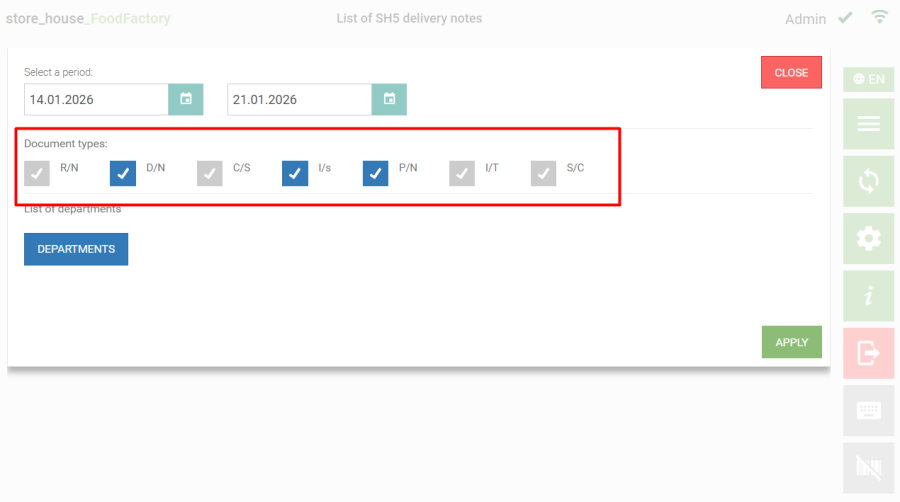 If no delivery note type is checked, then delivery notes of all types will be displayed in the r_k SH Pro delivery notes list. In the "Departments List" area of the window, you can filter the delivery notes list by departments. To do this, click the "Departments" button. The filter works on an OR basis. In the department selection window that opens, a list of available departments from the r_k StoreHouse Pro departments directory is displayed.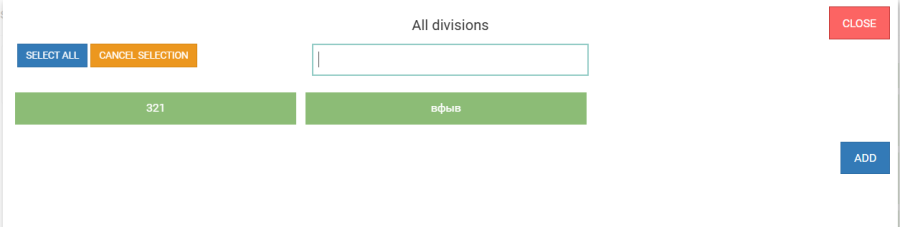
The list of departments may be limited by user rights. |
To select departments, click on the button with the name. The selected departments will be highlighted in grey. To select all departments, click the "Select All" button; to cancel the selection, click the "Cancel Selection" button. The necessary departments can be found using the search bar at the top of the window. To do this, enter part of the department name (at least three letters) into the search field, after which only the found matches will be displayed in the list, among which you need to select the required departments. To close the department selection window and return to the SH5 delivery notes list filter window, click the  button. All selected departments will be displayed in the "Departments List" field of the SH5 delivery notes list filter.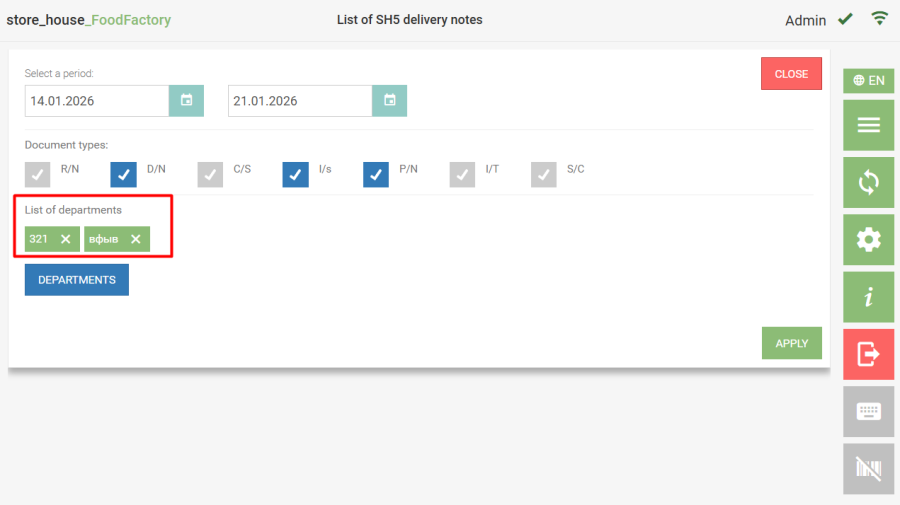
If no department is selected, then delivery notes for all departments will be displayed in the SH5 delivery notes list. To apply the set filter, click the  button; to cancel all settings made in the filter, click the
  button.