To create a new mode:
- Click the New Mode button. The settings window will open.
A new mode can be created based on an existing one. To do this, select the desired mode from the list of preset modes and click the Copy button
A copy of the existing mode will open.
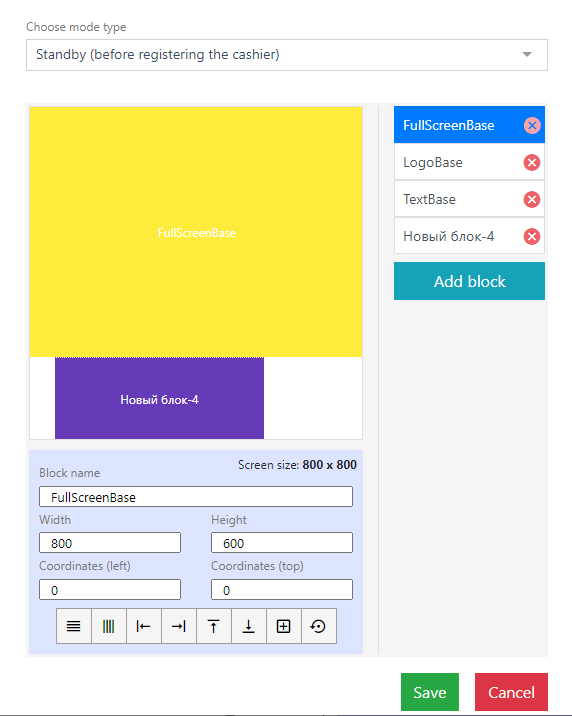
- Select the mode type. Only types not already used in previously created modes are available.
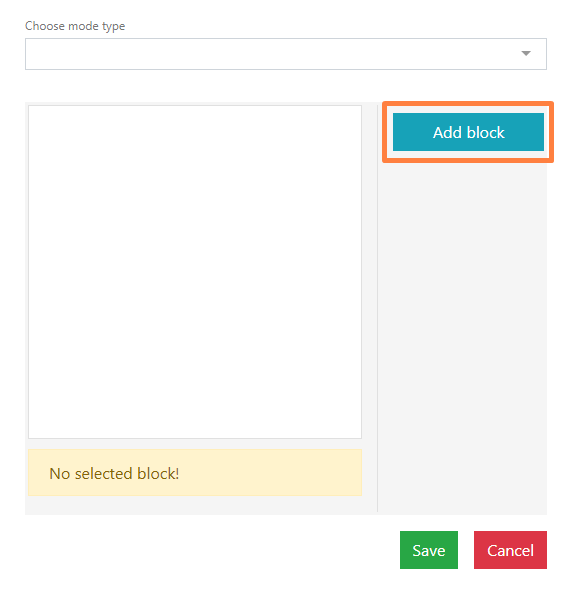
- Add a block. Blocks are used for positioning elements.
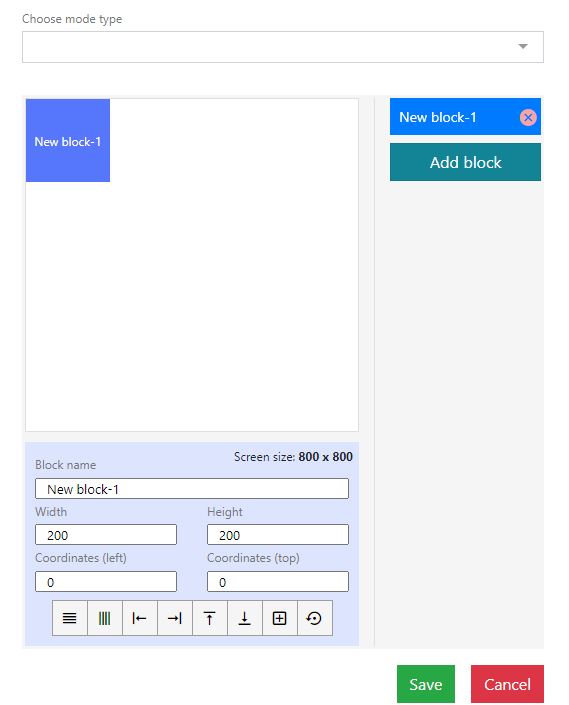
- Set the block's layout using the toolbar located at the bottom of the screen.
- After creating the block, click the Save button or cancel saving by clicking the Cancel button.
The system will display a message about successful saving.
Block Layout Parameters
Block name – the name of the block
Width/Height – block dimensions
Coordinates (left/top) – block position
Left – shift to the right, distance specified in pixels. The zero point is the top-left corner.
Top – shift down, distance specified in pixels. The zero point is the top-left corner.
Toolbar:
- Width 100% – automatically sets the block width to full screen.
- Height 100% – automatically sets the block height to full screen.
- Align left – fixes the block to the left side of the screen.
- Align right – fixes the block to the right side of the screen.
- Align top – fixes the block to the top of the screen.
- Align bottom – fixes the block to the bottom of the screen.
- Center – fixes the block in the center of the screen.
- Reset – resets the set settings.
The new mode will appear in the list of cash modes