Creating a New Scenario
To create a new scenario:
- In the List of Scenarios section, click the +Add button
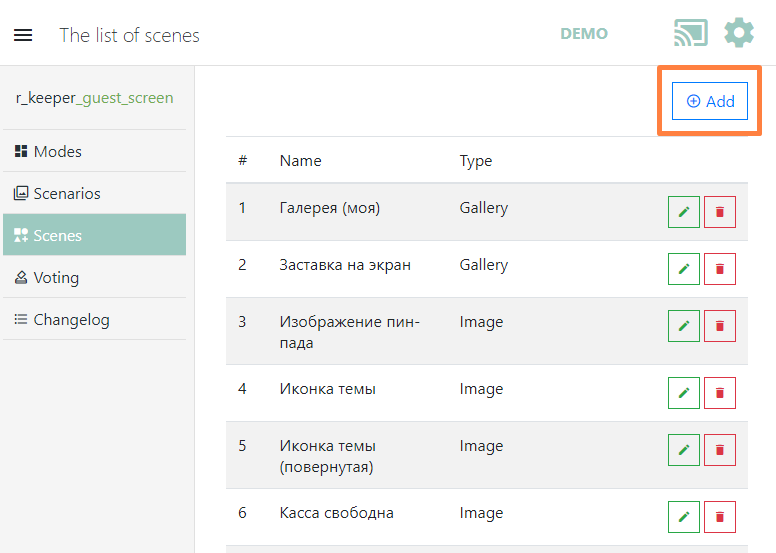
- In the window that opens, enter the scenario name and select a previously created Mode
- Then click the Save button to confirm or the Cancel button to cancel
- Next, create new conditions for the scenario to work, or edit the default Default condition.
For example, for the Adding menu items scenario, you can add and configure your own conditions for specific menu item categories. In each condition, you can add display scenes and select specific menu items. You can add multiple conditions. They will be checked from top to bottom; the first matching condition will be displayed on the screen.
Conditions can be reordered using the arrow buttons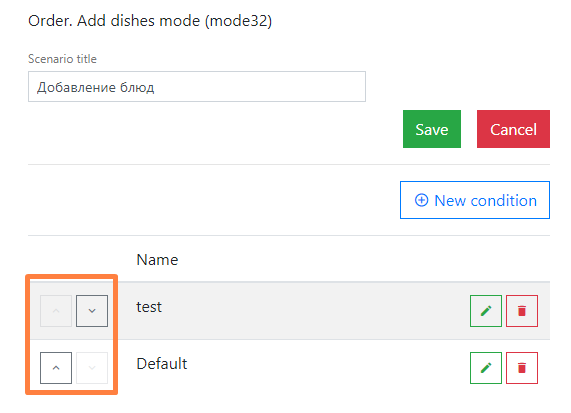
Creating and Editing a Condition
To create a condition:
- Click the +New condition
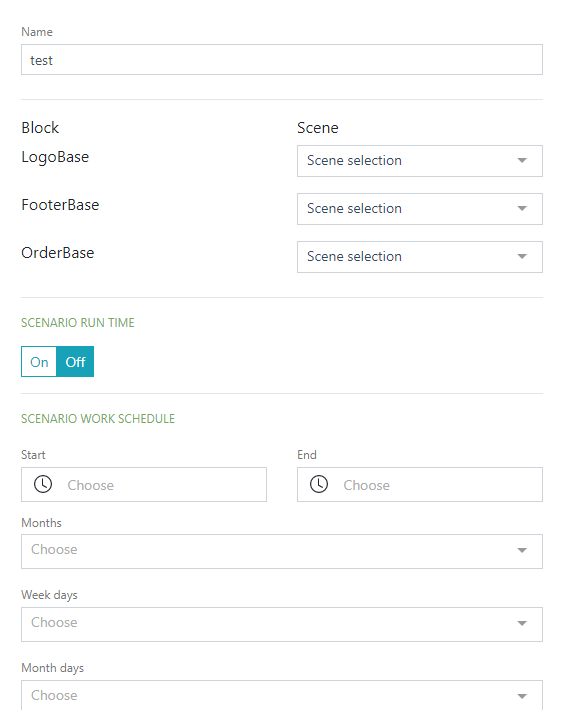
- In the window that opens, fill in the Name
- In the Block field, select the scenes to display.
The blocks will correspond to the previously selected Mode. - Scenario working time is disabled by default, meaning the scenario runs continuously. To configure the working time, click the On button; the Start time and End time fields will open. Use the calendar to specify the scenario's start and end dates and times.
- Scenario schedule – if the scenario should run according to a schedule, set the schedule using the preset parameters.
- If necessary, you can specify a list of conditions that will determine the algorithm for displaying scenes:
- Presence of a menu item from categories in the order – if menu items from the selected category are present, the scene specified in the selected scenario is displayed. Select the desired category or multiple categories from the list, then click the Save
- Absence of a menu item from categories in the order – if menu items from the selected category are absent, the specified scenes will activate. This condition is used so that, in the absence of menu items from a specified category, some advertisement (image) can be added to the order, suggesting the customer add a menu item from that category.
As soon as a menu item from the category is added to the order, the next scenario will begin. - Last menu item from categories – the scenario will activate if a menu item from a certain category is added as the last line of the order. As soon as a menu item from another category is added, the scenario will stop and move to the next condition.
- Presence of menu items with specific codes in the order – scenes will be displayed if specific menu items are present in the order.
- Absence of menu items with specific codes in the order – scenes will be displayed if specific menu items are absent from the order. As soon as a menu item is added to the order, the next scenario will start.
- Last menu item with specific codes – the scenario will activate if a specific menu item is the last line of the order. As soon as another menu item is added, the scenario will stop and move to the next condition.
- Restaurant codes for which this scenario is executed – select the required restaurants from the list. If no restaurant is selected, it works everywhere.
- Periods for which this scenario is executed – ability to select a period created in r_keeper.
- Show if:
- Payment has been made
- Payment has not been made
- In any case
- Payment via SBP