The Service Quality scene can be used for customers to rate the quality of service at the establishment.
Scene Configuration
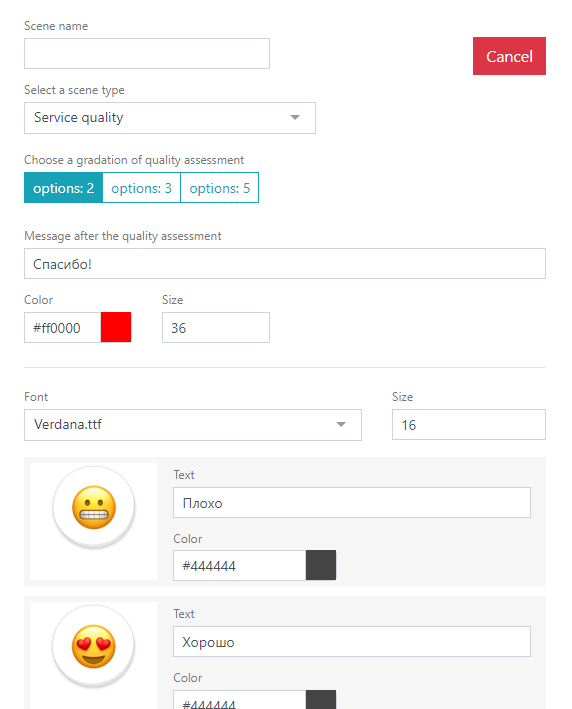
The Service Quality scene is preset. If necessary, you can change the rating scale – the gradation of quality assessment:
- 2 options – display two ratings on the screen.
- 3 options – display three ratings on the screen.
- 5 options – display five ratings on the screen.
For each rating, you can change the image (smiley) and text.
To change the image, click on it, and in the Images window that opens, double-click the desired image.
Enter the required text information that will be displayed on the screen in the Text field.
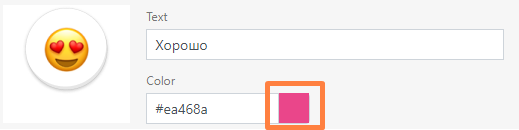
Text color can be changed using the html color palette.
Message to Guest After Rating
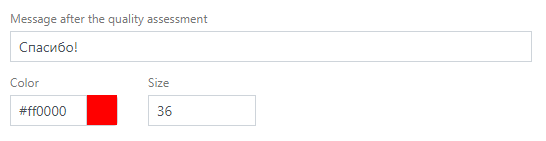
Message after the quality assessment – this message will be displayed on the screen after the guest rates the service quality. The preset message can be changed.
- Color – you can choose the text color. To change the text color, use the html color palette. The default is red.
- Size – you can change the size of the message after rating.
- Font – select one of the preset fonts from the list. You can also change the font size.
The Service Quality scene can be inserted into any r_k GuestScreen scenario. By default, this scene is displayed in the receipt printing scenario (mode5).
When printing a receipt, a Quality Assessment block will be displayed on the screen.
After selecting a rating, a message will be displayed, the text of which is entered in the Message after the quality assessment field.