If you plan to use QR code payment, we recommend not updating r_k GuestScreen:

  1. Export the database
  2. Delete the old version
  3. Install the new version
  4. Import the database.
    QR codes are supported starting from version 1.0.0.97 and higher.

If you want to update Guest Screen, you must do so through the installer. To do this:

  1. If you had version 0.0.0.x installed, be sure to unbind the license and delete the gs.db database file. 
    It is located in the root installation folder with GuestScreen.exe
  2. Download the installation file for the latest version from the FTP server at https://files-rkcloud.ucs.ru/d/65231391cff842d49a1a/?p=/rk7/other/Guest_Screen&mode=list
  3. Run the installer
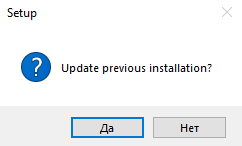
  4. When the installer detects an older version of r_k GS, it will offer to update it. Click Yes
  5. Complete the installation by following the subsequent installer prompts.

Done, r_k GuestScreen has been successfully updated to the desired version. 

Importing Templates

After updating r_k GuestScreen, you need to load the new standard template into the program. To do this:

  1. Download the template file from the FTP server at https://files-rkcloud.ucs.ru/d/65231391cff842d49a1a/?p=/rk7/other/Guest_Screen&mode=list
    The template file has the extension .exp, e.g., GS-UCS-0.0.1.33.exp
  2. Open Guest Screen and go to settings
  3. Go to the General tab
  4. Select the template file in the Import settings field.

The standard templates will be loaded into r_k GuestScreen.