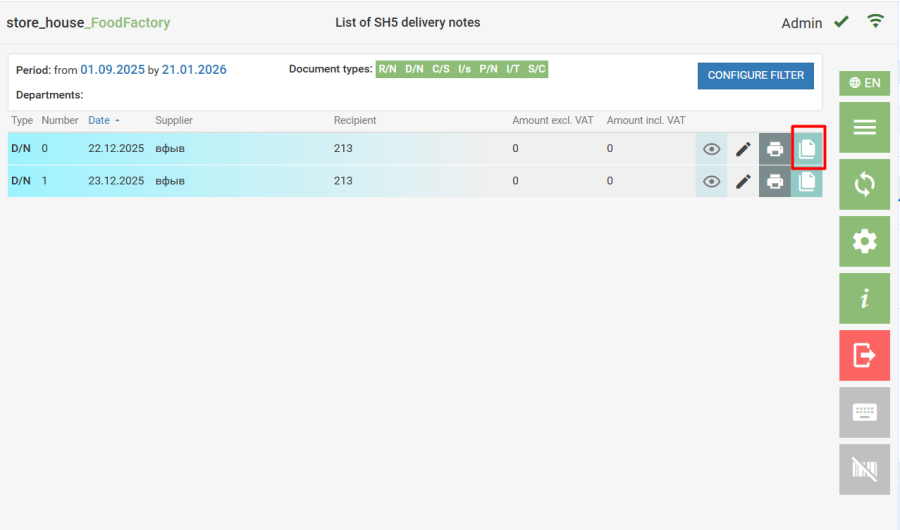
Using the Copy Delivery Note function, you can create a copy of a document. To do this, in the "SH5 Delivery Notes List", click the button Unable to render embedded object: File (worddav33a2a2b610852428ee717777b4866db7.png) not found. next to the desired delivery note
After that, the selected document will open in editing mode, and you can make all necessary changes, as when creating a new document (receipt note , expenditure delivery note, collation statement, internal transfer, set creation, processing note, internal sale). The new document will have the same Document Type. The document date will automatically be set to the current date. Correspondents and departments will be filled according to the data contained in the source document. Fields can be edited.
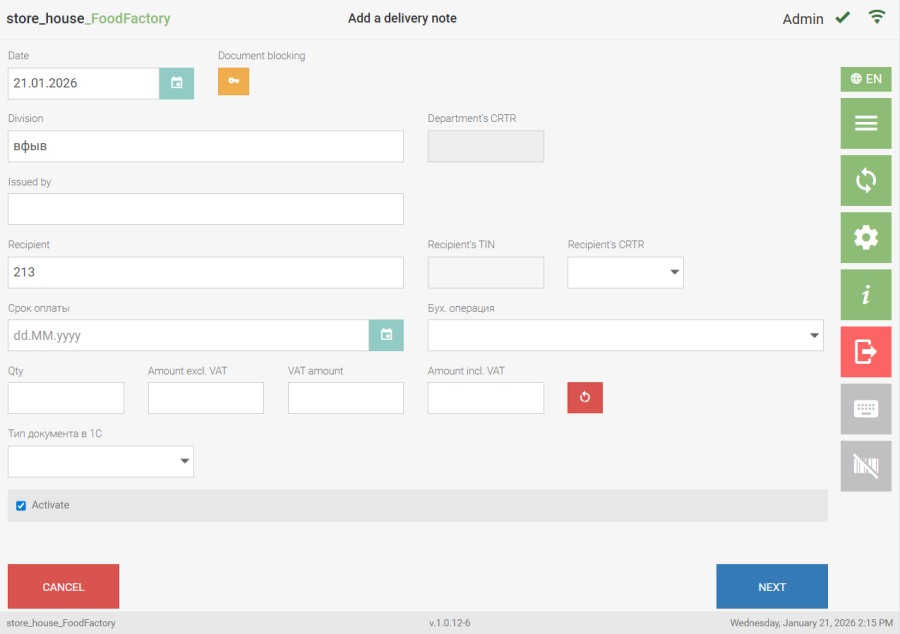
If the user has limited rights to work with certain departments, then the activation of such a document must be performed by another user.
The entire list of goods with their quantities and amounts will be transferred to the goods list. The goods list can be edited.
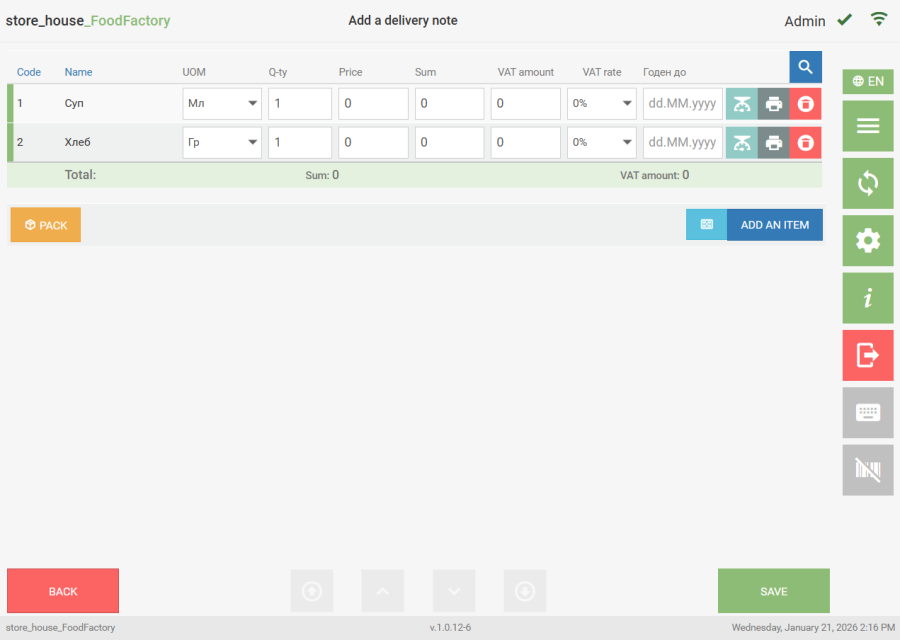
After clicking the [Save] button, the delivery note will be assigned a number according to FoodFactory rules.
If the user has restrictions on creating documents by correspondents, the system will not allow copying the document and will display an error. 