Buttons for navigating to some application modes are shown below:

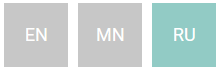
- Main menu language selection button. The active language is displayed on the button. Clicking this button opens language switch buttons; the selected language is highlighted in turquoise - .

- Button to navigate to the Main Menu from any application window.

- Button for forced synchronization with r_k StoreHouse Pro.

- Button to navigate to the settings mode.

- "About the Program" button and list of changes in releases.

- Button to exit the application.

- Button to enable the text keyboard. When the keyboard is disabled, the button is gray – .

– Button to switch to barcode scanner mode, if a connected specialized device is used. When the scanner mode is enabled, navigation in the document goods list using arrow keys on the computer keyboard becomes unavailable. When disabled, the button is gray — . Does not affect the camera operation on the tablet. 

- Buttons to scroll the visible content by one screen. Present in all windows with lists and settings windows. Inactive, they have a pale gray color . They become active when the content does not fit in the visible part of the screen. To scroll the content up one screen, press the button ; to scroll down one screen, press .

- Buttons to scroll the screen to the beginning and end of the list. Present in all windows with lists. Inactive, they have a pale gray color . They become active when the content does not fit in the visible part of the screen. To scroll the screen to the beginning of the list, press the button ; to scroll to the end of the list, press .