Main Settings
The "Main" tab is used to configure scales, data synchronization parameters, and menu access. 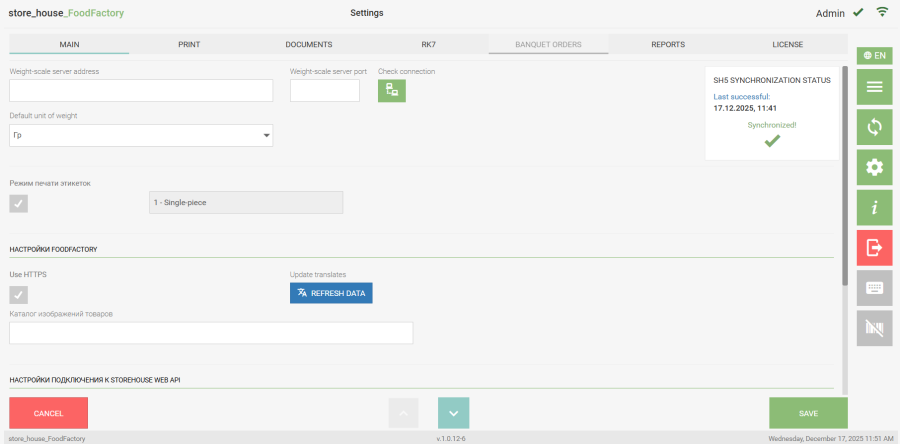
When using scales (for example, to add a goods item to a delivery note or print a label for a weighted goods item), the corresponding settings must be made. To do this, on the settings page, on the "Main" tab, enter the scales server address in the "Weight-scale server address" field and the scales server port in the "Weight-scale server port" field. 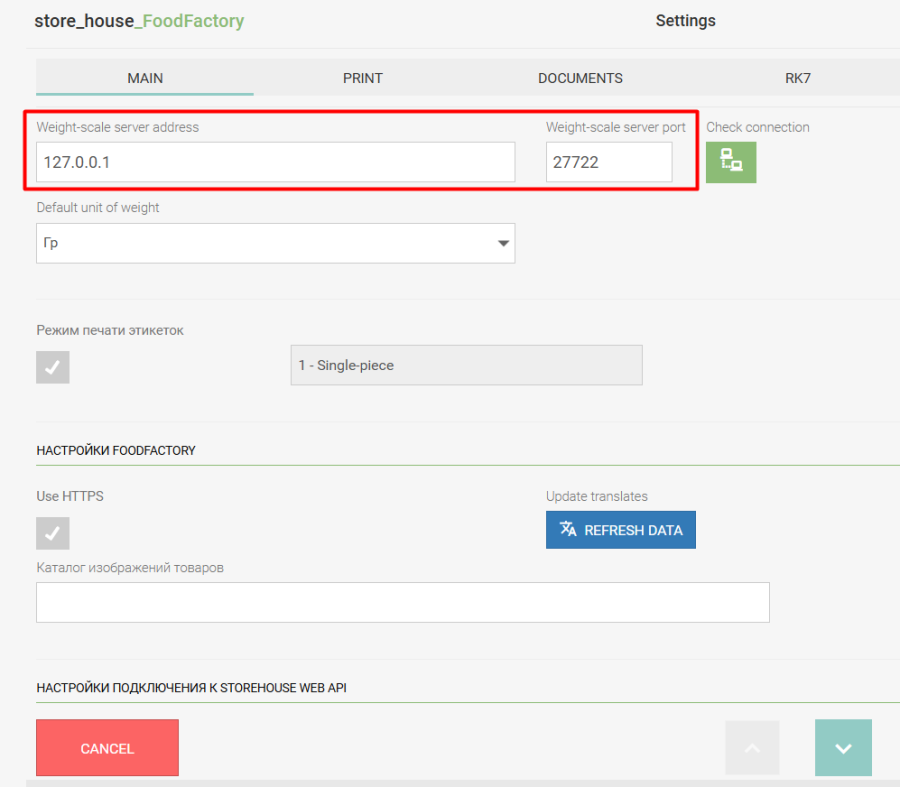
Then click the "Check Connection" button  . If the server address and port are entered correctly, the message "The connection to weight-scale server has been successfully established" will appear to the right of the button.
  In the "Default unit of weight" field, select the unit of measurement in which data transmission from the scales is configured.
- Label Printing Mode Settings
When the "Label Printing Mode" flag is set, only label printing will be available in the application.
If the "Label Printing Mode" flag is set, the "Documents" section in the settings is blocked because in this mode, users of this device only have access to label printing. |
After setting this flag, select the mode for printing labels.
0 - Weight
1 - Single-piece
2 - All (Single-piece and Weighted)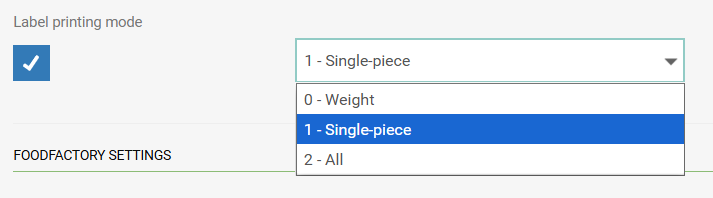 When selecting the Weighted or Unit label print mode, after saving the settings, the user can select a goods item for label printing.
If you need to go to the settings menu or log out, close this window using the "Close" button in the upper right corner. To return to the goods selection mode, click the "Select Goods Item" button.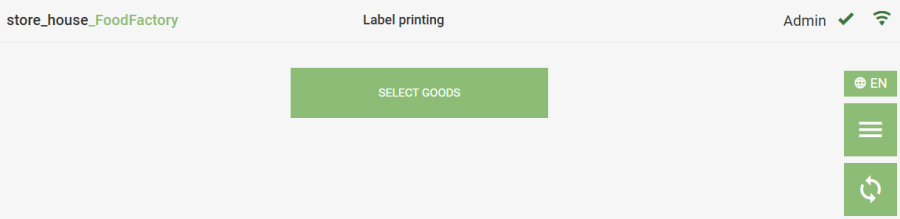 When selecting the "All" label print mode, i.e., printing labels for both weighted and unit goods, after saving the settings, the user can select the label printing option.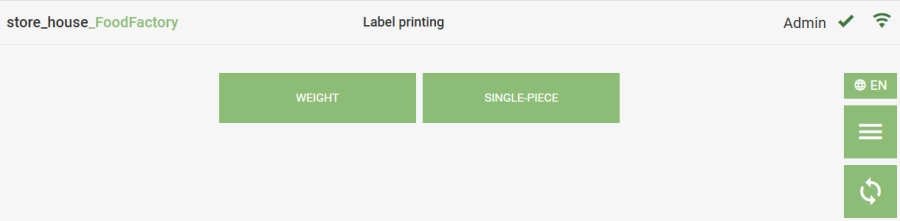
If the device running the FoodFactory application is equipped with a video camera or an external video camera is used, you can scan the barcode on a goods item using the video camera. To configure this capability, in the "FOODFACTORY SETTINGS" area, set the "Use HTTPS" flag.  After the "Use HTTPS" flag is set, the message "Service reboot required" will appear, meaning the FoodFactory service needs to be restarted (for more detailed information, contact technical support engineers).
To update the main menu translations, in the "FOODFACTORY SETTINGS" area, click the "Refresh data" button. 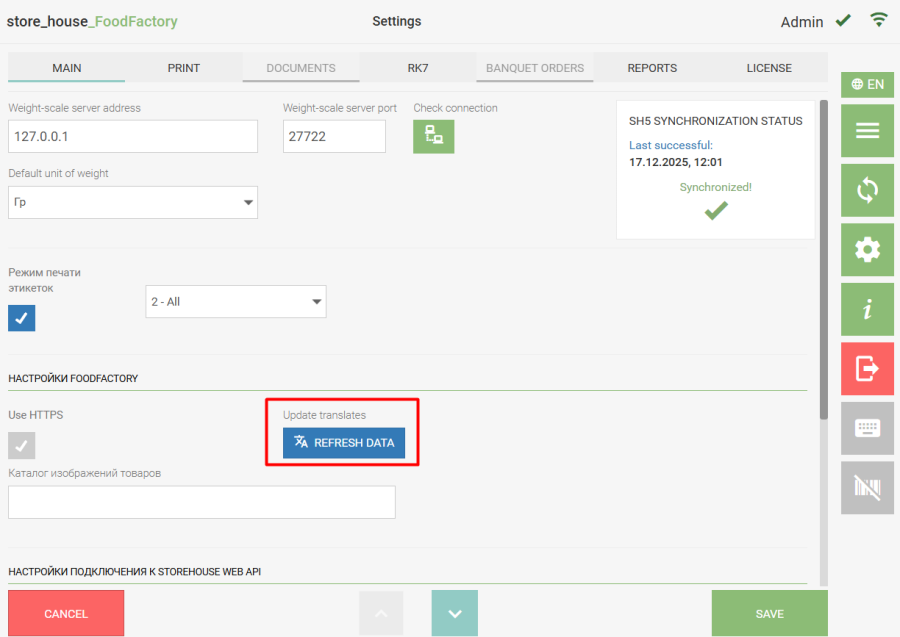 After this, a message will appear stating that the translation files have been updated.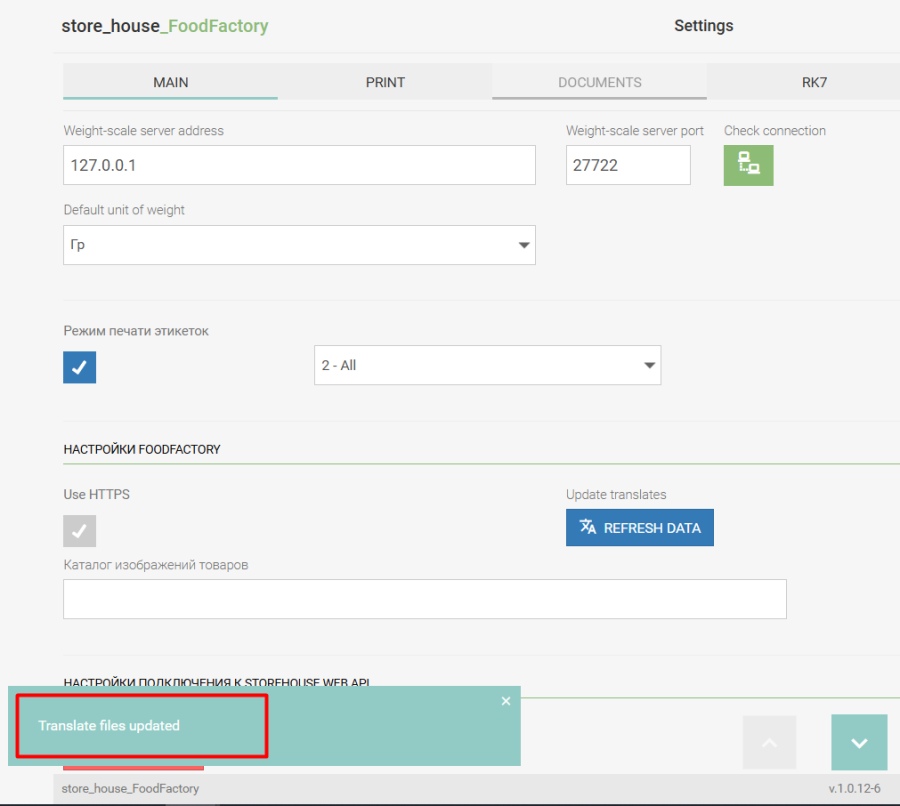
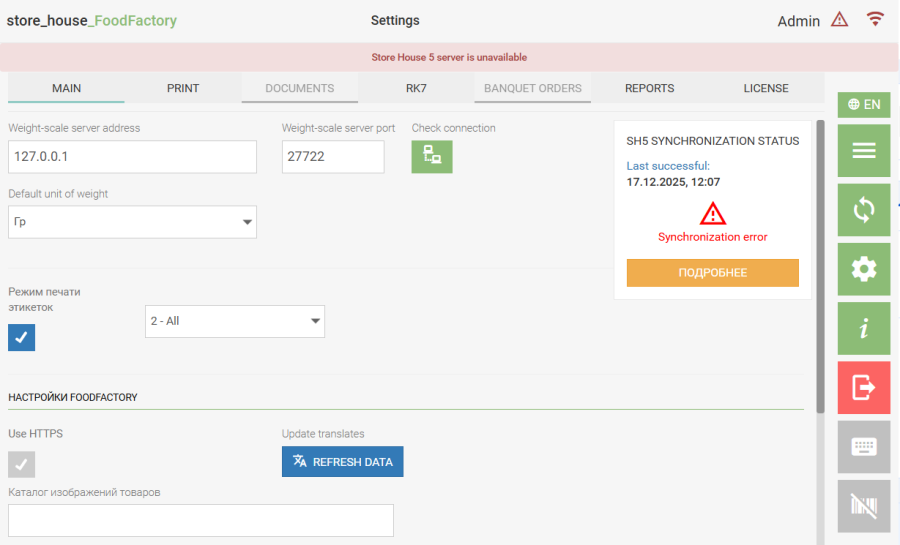
The data synchronization frequency between FoodFactory and r_k StoreHouse Pro is set in the "CONNECTION SETTINGS TO STOREHOUSE WEB API" area in the "Synchronization Frequency (min)" field. Enter the number of minutes after which data in FoodFactory will be updated. I.e., if any changes were made in r_k StoreHouse Pro, these changes will be automatically reflected in FoodFactory after the specified number of minutes. 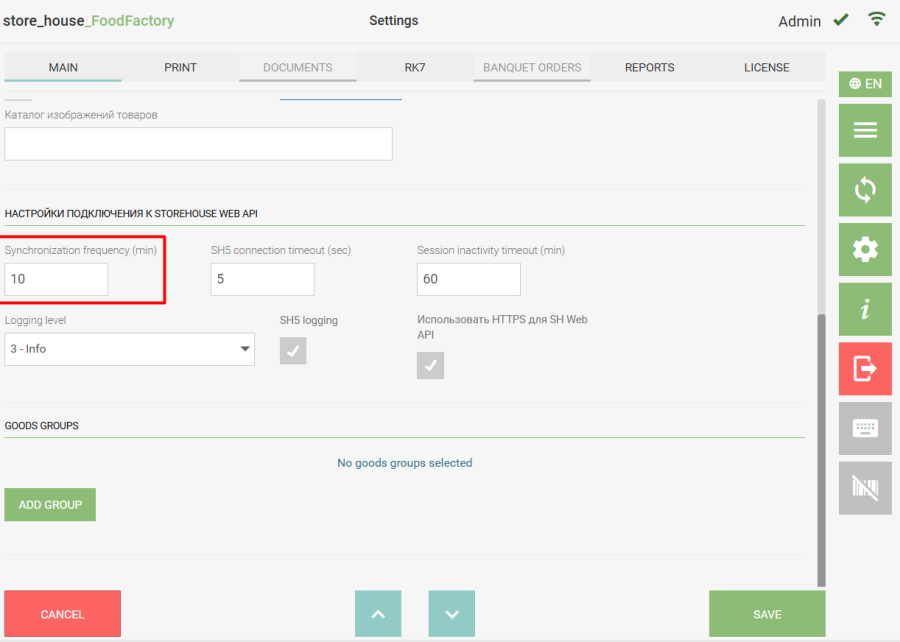 In the upper right corner of the main settings window, the "Synchronization Status with SH5" field displays the date and time of the last successful synchronization; below it, the status of the last synchronization is displayed: — synchronization process started; — synchronization successful; — synchronization failed, no connection to SH5. For more detailed error information, click the [Details] button.
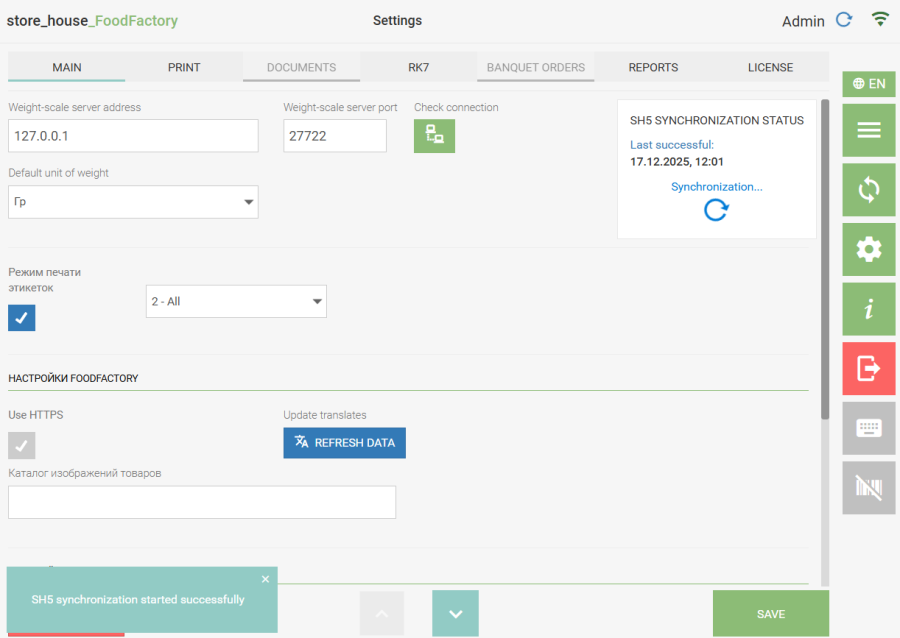 The current synchronization status is also displayed simultaneously to the right of the user's login.
This is a technical setting performed by a technical support engineer. 
In the "Session Inactivity Timeout (min)" field, you can specify the number of minutes after which the user session will be terminated if they closed the program without clicking the "Exit" button. By default, the field contains the value "60". 
To generate logs, in the "CONNECTION SETTINGS TO STOREHOUSE WEB API" area, set the "SH5 Logging" flag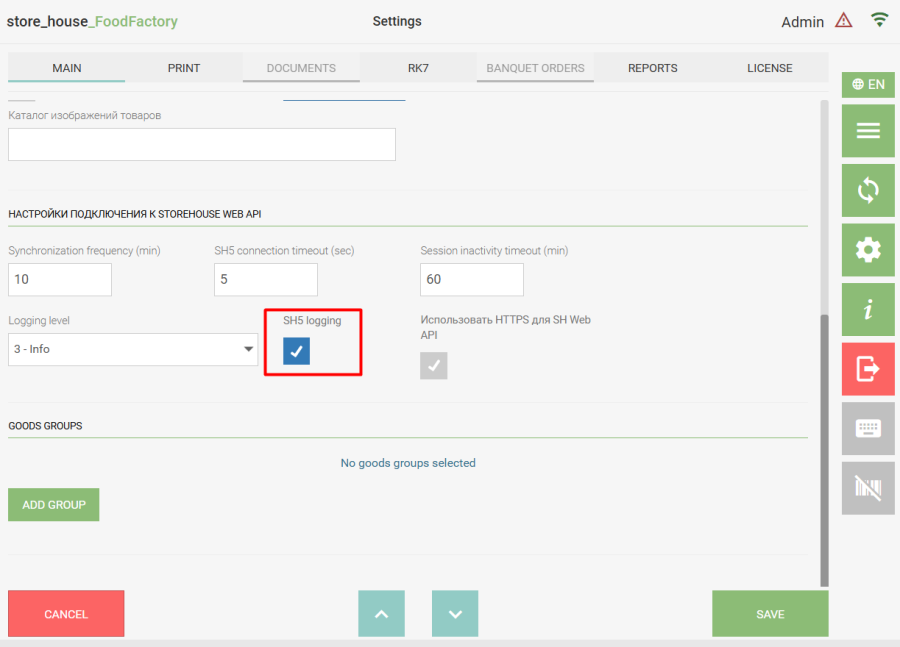
and select the required "Logging Level". Level 1 is the most concise, and Level 5 is the most detailed.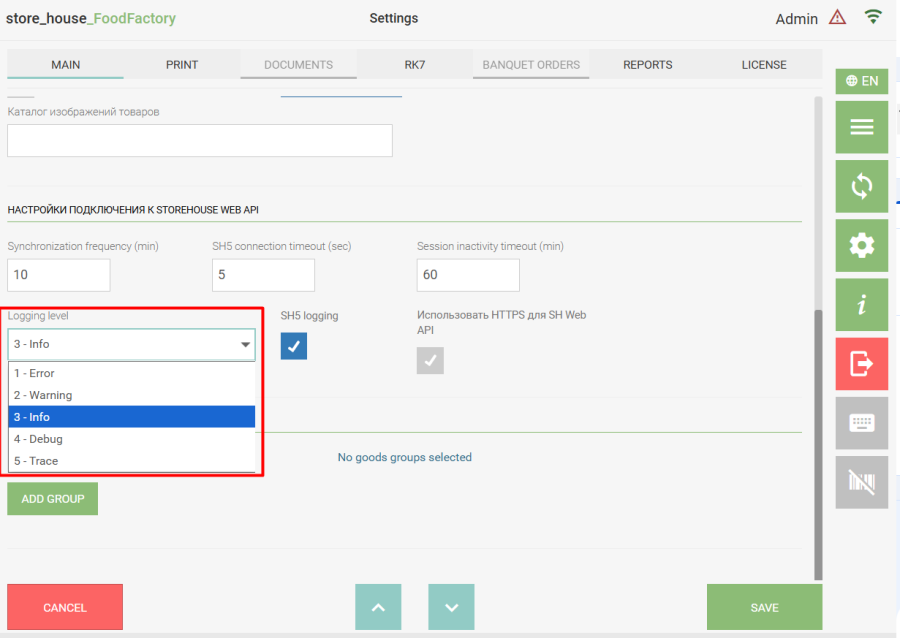
Use HTTPS for SH Web API - set this flag if HTTPS is used as the protocol for communication with SH Web API. After changing this setting, the FoodFactory service must be restarted (for more detailed information, contact technical support engineers).
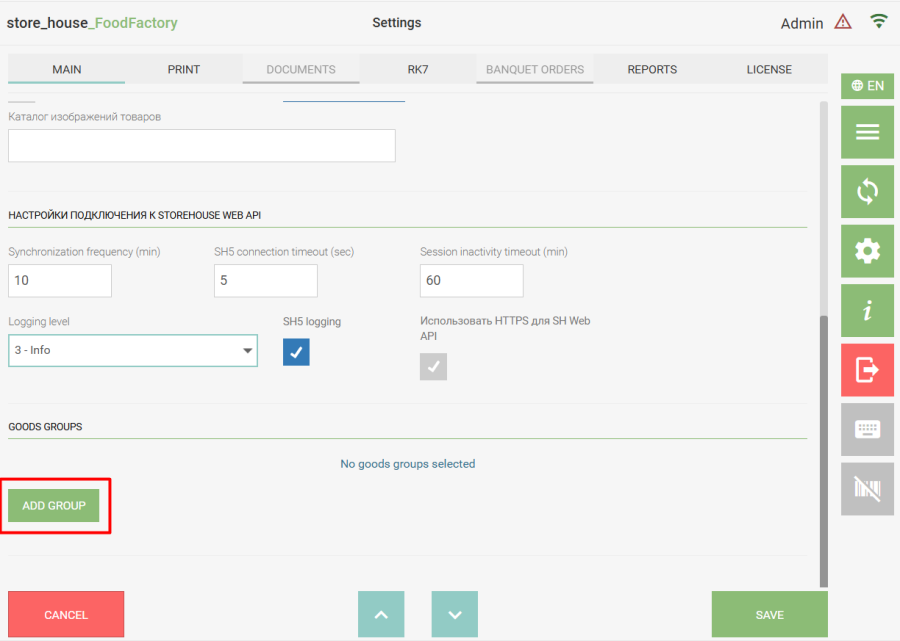
The menu groups containing the goods required for work in the application are selected in the "Goods Groups" area. If no goods groups are selected in the list, the button  will be displayed. Click it to access the selection of goods groups.
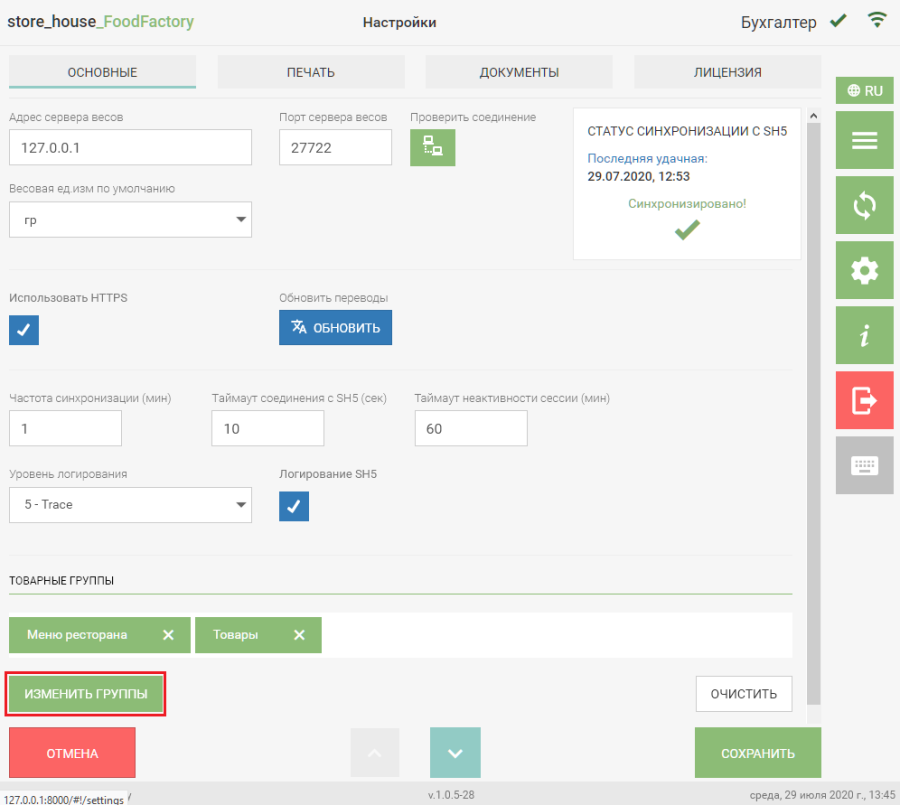
  If at least one goods group is selected in the list, the button
  will be displayed. Click it to access the selection of goods groups.
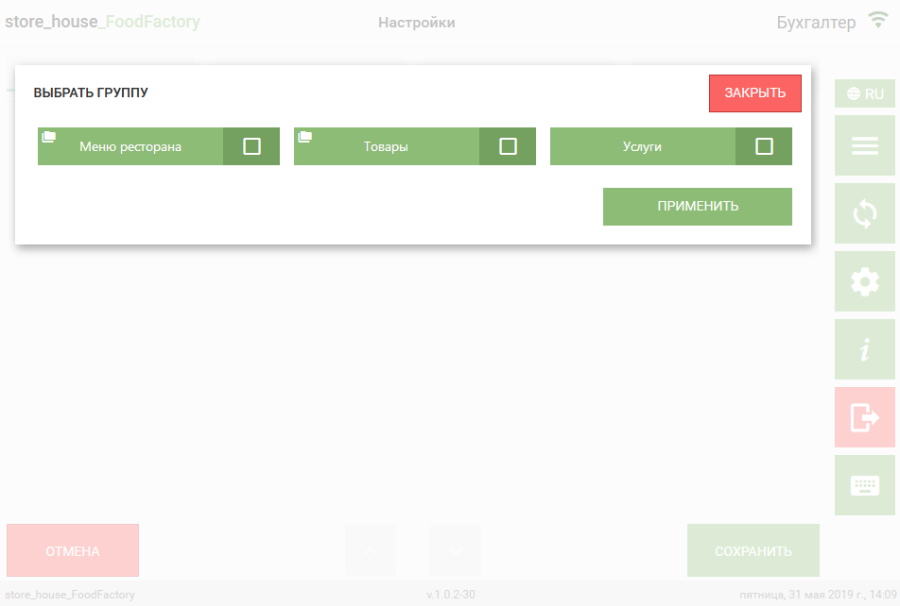
  A window with a list of root goods groups from r_k StoreHouse Pro will open. You can exit this window by clicking the "Close" button.
  The icon
  on the button with the group name means that this group contains nested groups. Clicking the button with the group name and the icon will display a list of its subgroups on the screen. To select a group, set the selection flag on the button with its name.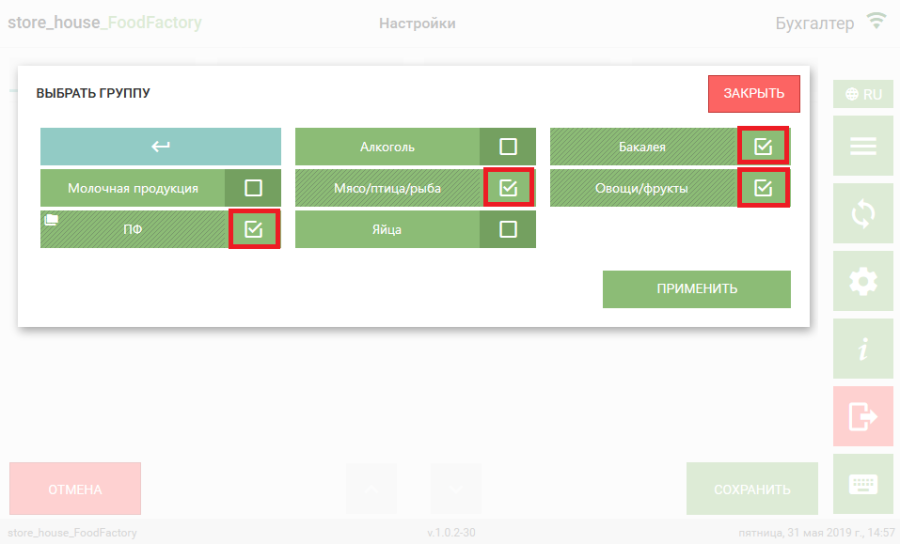
If the selected group has subgroups, they are also considered automatically selected. |
After selecting all required groups, click the "Apply" button. The selected groups will be displayed in the goods groups list.  To remove a selected group from the goods groups list, click the cross on the button with the group name. To remove all groups from the list, click the "Clear" button. To save the changes made, click the "Save" button, after which the settings window will close. To cancel saving, click the "Cancel" button.
If no goods groups are selected, then all existing goods groups in the database will be displayed in the goods selection window within a document. |