Print Settings
If you need the ability to print documents and goods labels, configure the print settings on the "Print" tab of the settings window.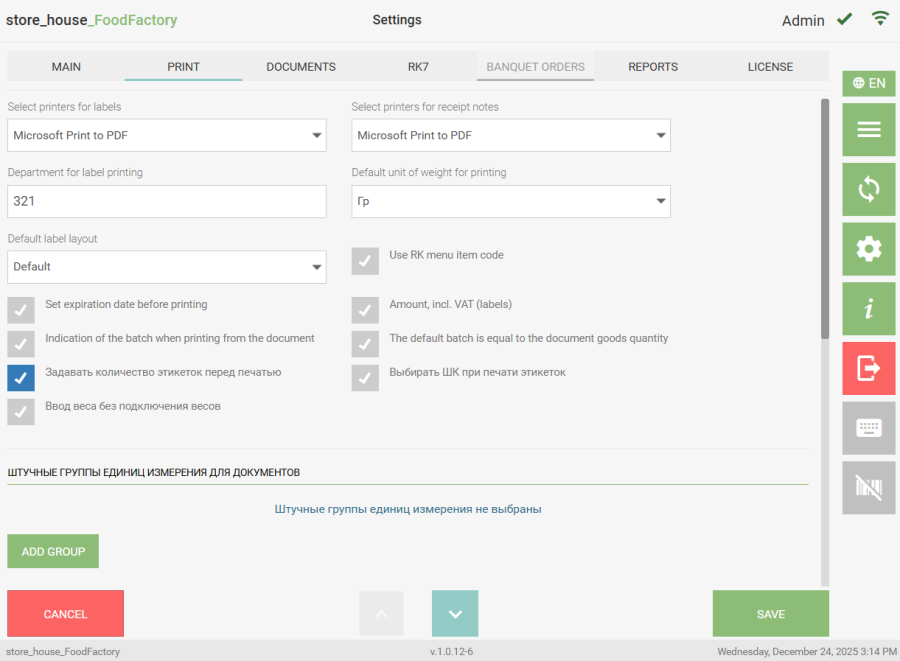
In the "Select Printers for Labels" field, select a printer for printing labels. If a network printer needs to be used for printing labels or delivery notes, standard settings for working with network devices must be performed. After this, network printers will appear in the printer list for selection. In the "Department for Label Printing" field, select a department for printing labels. The list of departments available for selection depends on the user's permissions. The information on the label will be printed according to the selected department. In the "Default Unit of Weight for Printing" field, specify the unit of measurement (g or Kg) that will be printed on the label of weighted goods by default. If the product card in r_k StoreHouse Pro on the "Units of Measurement" tab does not have this unit of measurement, this goods item will be unavailable for label printing. In the "Default Label Layout" field, you can select a label layout that will be used by default for printing labels. Initially, the Default label layout is selected in the field. To select a label layout, click the "Default Label Layout" field. A list will open where you need to select the required label layout. 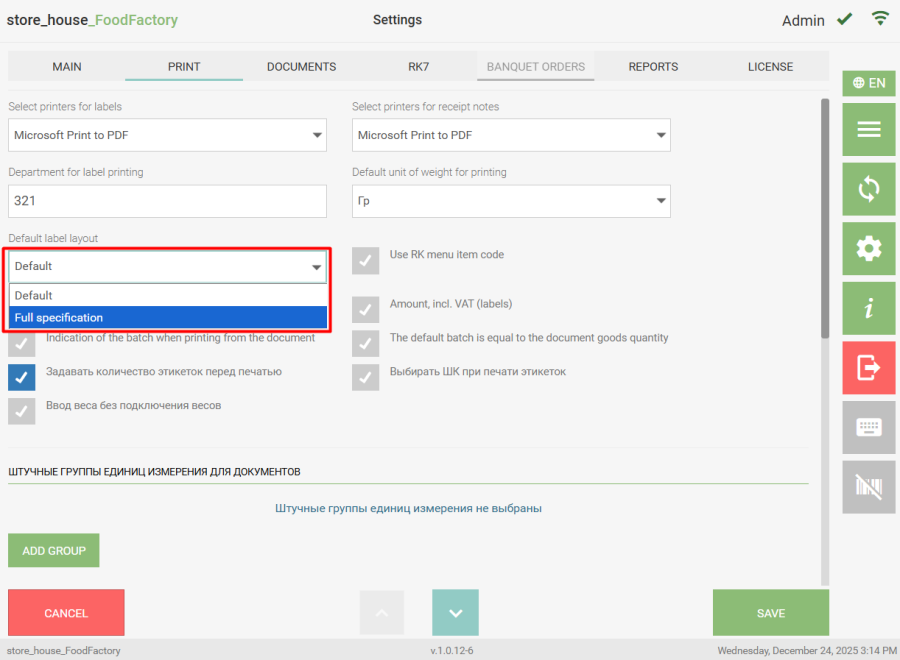
The "Use RK Menu Item Code" flag is set if the barcodes generated in FoodFactory (see section 6 for details) need to be used at R-Keeper POS terminals to add a dish (menu item) to an order. Barcodes with the RK goods code can also be used to search for goods when creating documents.
To read FoodFactory-generated barcodes at an RK7 POS terminal, the corresponding MCR algorithm must be added to R-Keeper. This configuration is performed by UCS employees or regional company representatives. |
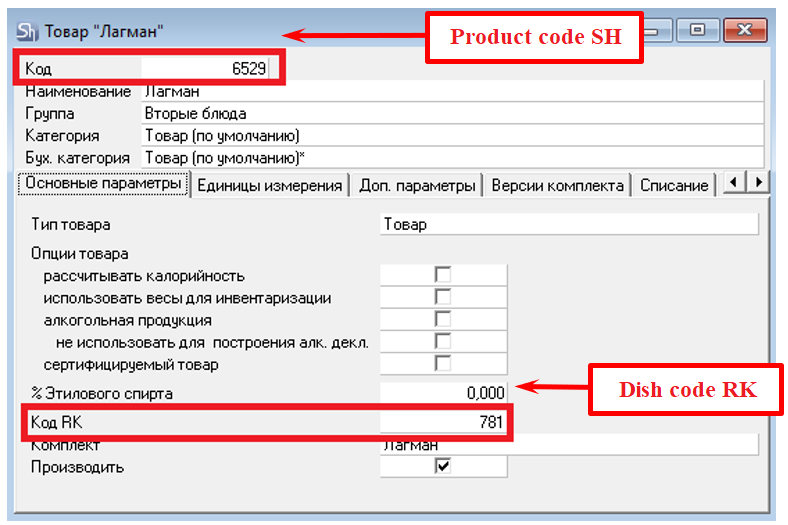
Rule for using codes from the r_k StoreHouse Pro product card when generating barcodes for printing labels:
- If the "Use RK Menu Item Code" flag is NOT set, then the "r_k SH Pro Product code" from the r_k StoreHouse Pro product card will be used when generating the barcode for the label.
- If the "Use RK Menu Item Code" flag is set, then when generating the barcode for the label, the "RK Code" field will be checked first. If the field is filled, this code will be used in the barcode; if the field is empty, the "r_k SH Pro Product code" will be used.
The "Set Expiration Date Before Printing" flag is set if it is necessary to specify the goods item's expiry date when printing a label. The "Amount, Incl. VAT (labels)" flag is set if it is necessary for the goods item amount to be indicated including VAT when printing a label. Otherwise, the flag should not be set. The "Indication of the Batch when Printing from the Document" flag is set if it is necessary to specify the batch quantity when printing a goods label from a document. The "The Default Batch is Equal to the Document Goods Quantity" flag (this setting only works when the "Indication of the Batch when Printing from the Document" flag is enabled) is set if it is necessary for the quantity of this goods item in the document to be substituted as the default batch when printing a goods label from a document.
The "Set Label Quantity Before Printing" flag is set if it is necessary to set the number of labels for subsequent printing. This window opens after selecting a goods item for the label. If the flag is not set, the label quantity is "1", but it can be changed before printing.
The "Select Barcode When Printing Labels" flag is set if, when printing labels for unit goods, the external barcode from the r_k StoreHouse Pro product card needs to be printed (see the r_k StoreHouse Pro User Guide for details).
The "Enter Weight Without Weight-scale Connected" flag allows manually entering the goods weight when printing labels for weighted goods, thereby eliminating the need to perform Weight-scale server configuration.
- Single-piece UOM Groups for Documents
In this settings area, you can select UOM Groups whose units of measurement should be considered "unit" and labels from documents should be printed without conversion to a weight unit of measurement.
For Single-piece UOM Groups from documents, printing fractional quantities is not available. |
If no UOM Groups are selected in the list, the [Add Group] button will be displayed. Click it to access the UOM Groups.
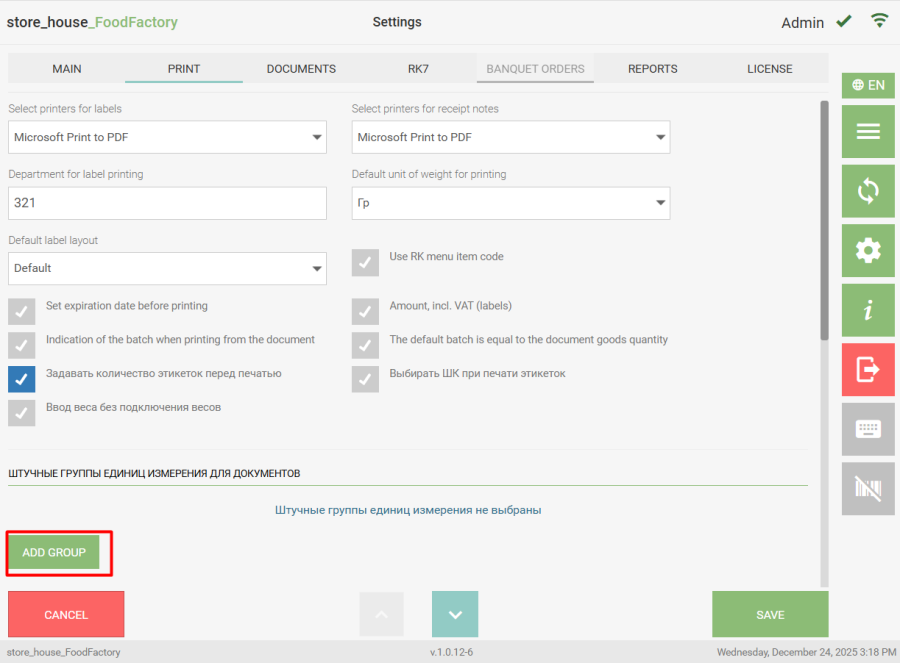 If at least one UOM Group is selected in the list, the [Change Groups] button will be displayed. Click it to access the selection of UOM Groups.
 A window with a list of UOM Groups will open. You can exit this window by clicking the [Close] button.
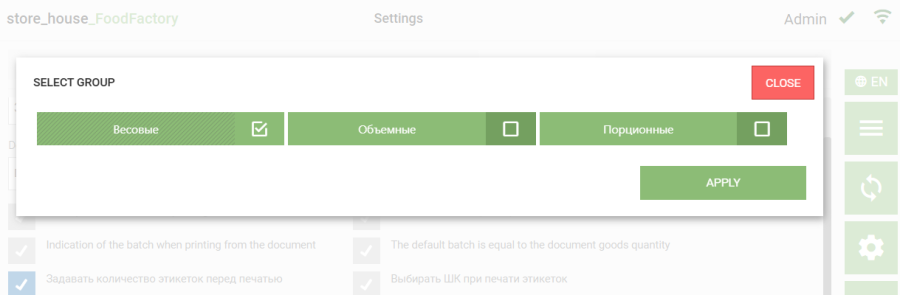
To select a group, set the selection flag on the button with its name. After selecting all required groups, click the [Apply] button.
 The selected groups will be displayed in the Single-piece UOM Groups for Documents list.
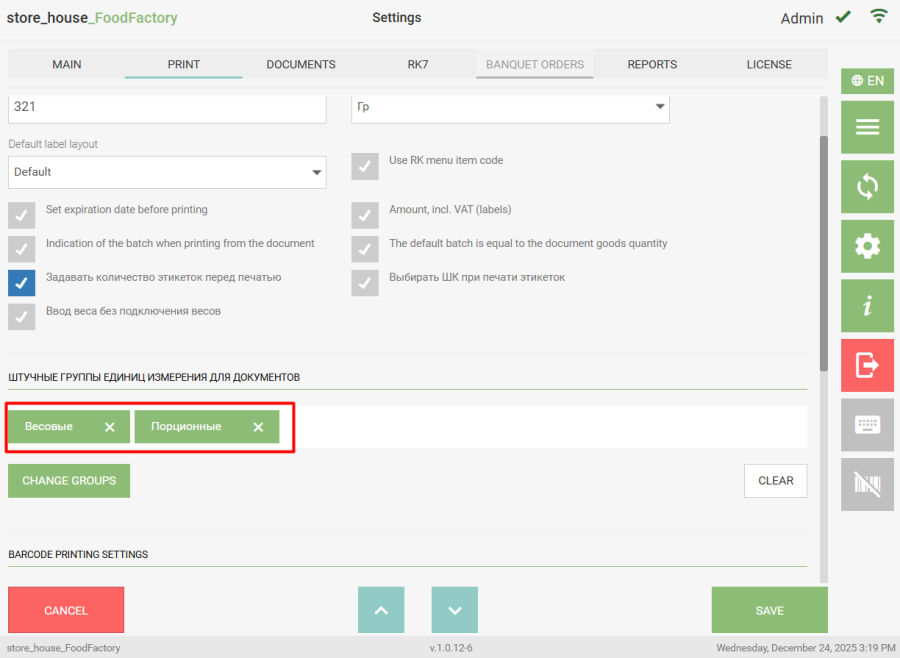
To remove a selected group from the Single-piece UOM Groups for Documents list, click the cross on the button with the group name. To remove all groups from the list, click the [Clear] button. To save the changes made, click the [Save] button, after which the settings window will close. To cancel saving, click the [Cancel] button.
If no UOM Group is selected, then when printing a label from documents, the quantity will be converted to a weight unit of measurement according to the defined rules. |
In the "Barcode Printing Settings" area of the window, select the barcode printing mode: "Standard Functionality (EAN13)" or "Advanced Functionality (Code128)".
When this mode is selected, a barcode in EAN13 format is printed on the label.
In the "Barcode Mask" field, you can set the barcode mask. By default, the mask is:
2UCCCCCWWWWW, where U — unit of measurement, C — goods code, W — weight.
If the "Use RK Menu Item Code" flag is set, then the "RK Code" from the r_k StoreHouse Pro product card will be used as the goods code in the barcode, provided this field is filled. If the field is not filled, the r_k StoreHouse Pro goods code will be used. |
When selecting the "Standard Functionality (EAN13)" mode, you need to fill the "UOM Mapping (for printing barcodes on labels)" list. It is necessary to list the units of measurement for which a barcode will be printed on the label. The unit of measurement specified in the "Default Unit of Weight for Printing" field must be added to this list. The allowable number of units of measurement is no more than 10, as this is related to the 13 characters in the barcode. To add a unit of measurement to the "UOM Mapping (for printing barcodes on labels)", click the button  . The "Selection of Measure Unit" window will open, where you need to select the required unit of measurement.
 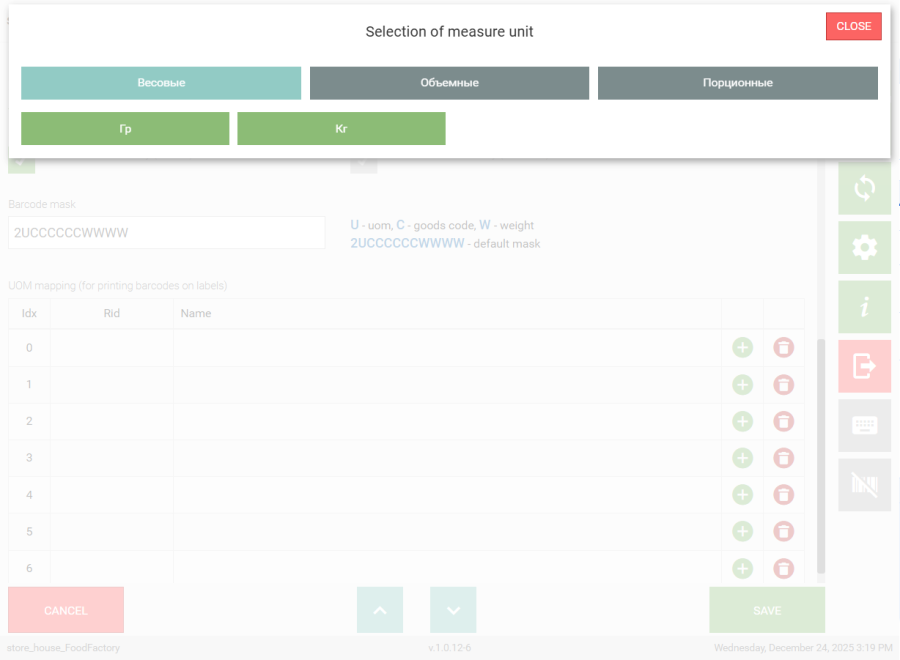 The first line displays all UOM groups from r_k StoreHouse Pro, and below - the composition of the selected group. The button of the selected group has a gray-blue background. To select a unit of measurement, select a group, then a unit of measurement within it, and click on it. The selected unit of measurement will be added to the list. To remove a unit of measurement from the list, click the button
  in the corresponding row. To save the changes made to the print settings, click the "Save" button; to cancel saving, click the "Cancel" button.
When this mode is selected, a barcode in Code128 format is printed on the label. When selecting the "Advanced Functionality (Code128)" mode, no additional settings are required.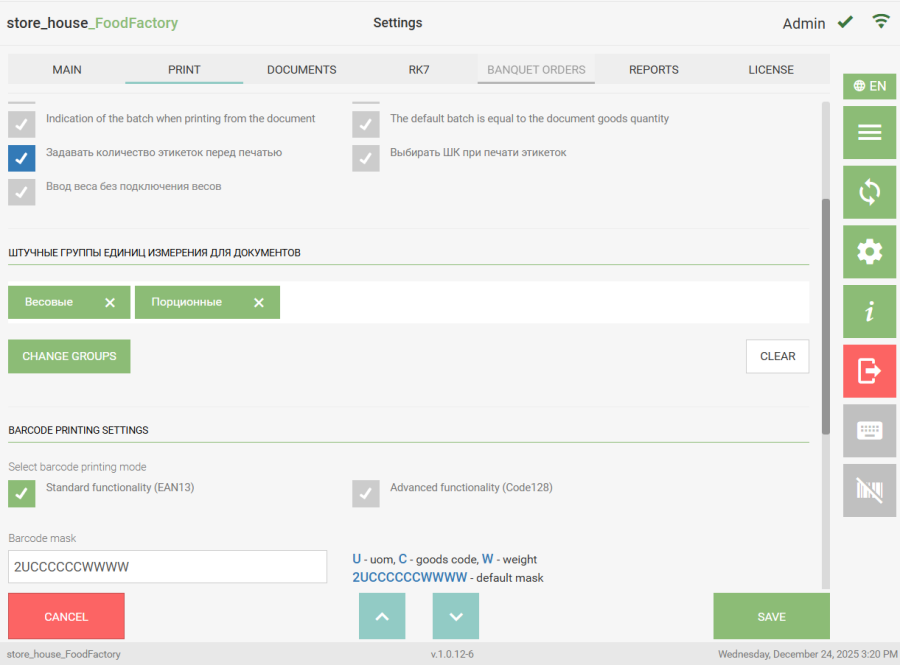 To save the changes made to the print settings, click the "Save" button; to cancel saving, click the "Cancel" button.