RK7 Connection Settings
To enable work with banquet orders, it is necessary to configure the connection with R-Keeper7 on the RK7 tab.
To enable the generation of reports in FoodFactory for banquet orders, the R-Keeper version must be at least 7.6.4.452 /7.6.5.174. |
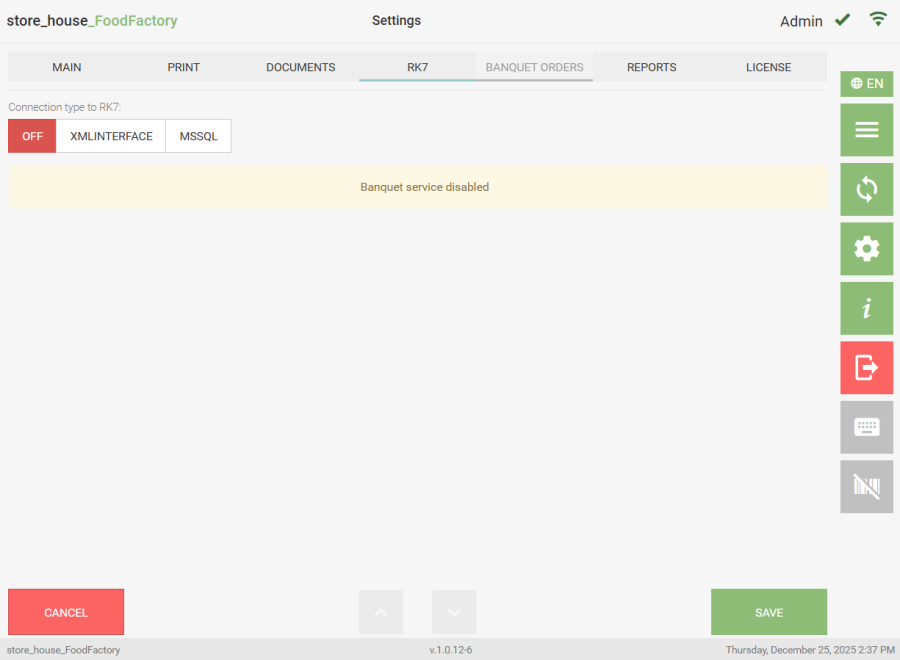 By default, the mode for receiving data from R-Keeper is disabled - the OFF button. This functionality is configured by UCS company employees or regional company representatives. Additional configurations are required on the R-Keeper side.
This connection type allows working directly with R-Keeper Cash Servers. To enable receiving data from Cash Servers, the Web interface must be additionally configured on the R-Keeper Cash Servers. This functionality is configured by UCS company employees or regional company representatives. 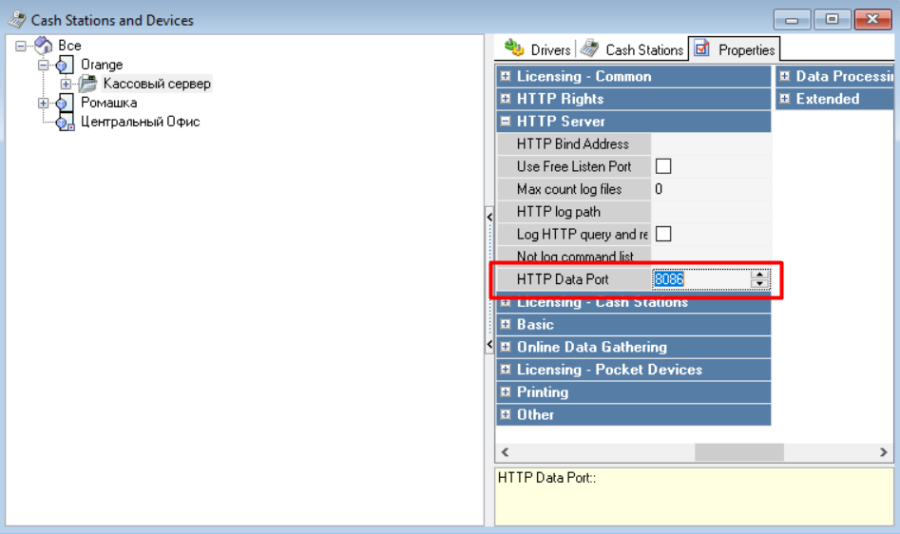 To connect to RK7 using XMLINTERFACE, click the "XMLINTERFACE" button in the "RK7 Connection Type" field. It will be highlighted in blue. Then, in the opened window, click the "ADD CASH SERVER" button.
  Settings fields will open. Settings can only be edited for an "Enabled" Cash Server. The server status is determined by setting the flag to the right of the "Cash Server" field.
Server off — gray flag and status "Disabled" -  .
.
Server on — blue flag and status "Enabled" -  .
.
This flag can later be used to regulate the receipt of data from Cash Servers for generating reports for "Banquet Orders" without deleting the server from the list. If the server status is "Disabled", data from this server is not processed when generating reports for banquet orders.
The following fields must be filled:"Cash Server" — specify the Cash Server name (may differ from the server name in R-Keeper)"IP Address" — specify the IP address of the Cash Server."Port" — specify the HTTP connection port of the Cash Server."Login" and "Password" — specify the username and password of the RK7 user with access to the xml interface.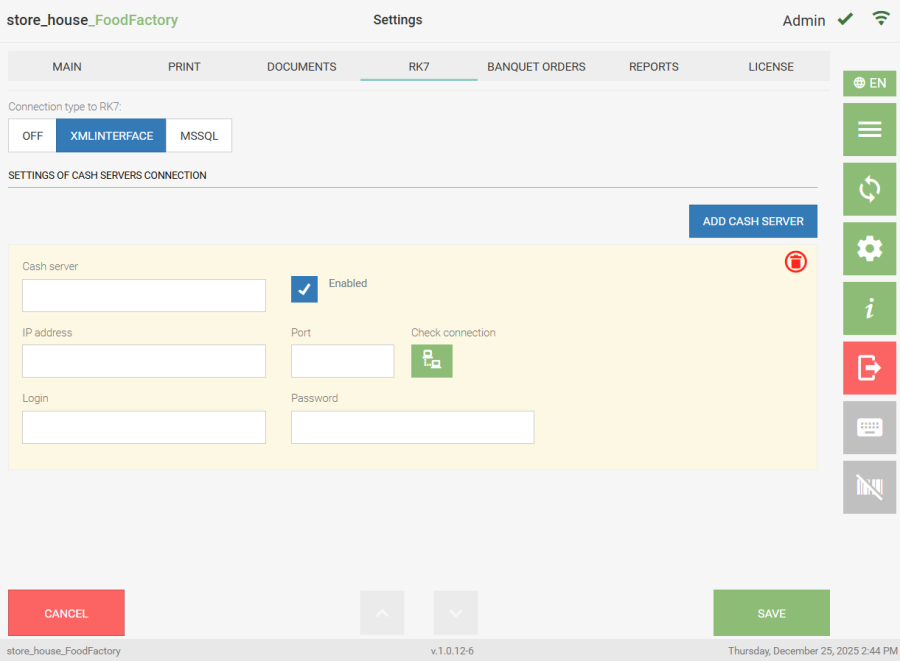
Then click the "Check Connection" button  . If all fields are filled correctly, the message "Connection OK" will appear to the right of the button.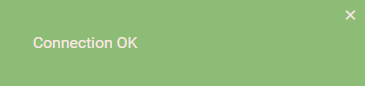
If the fields are filled incorrectly, or the Cash Server is unavailable/stopped, the message "Connection error" will appear to the right of the button, and an error message will appear in the lower left corner.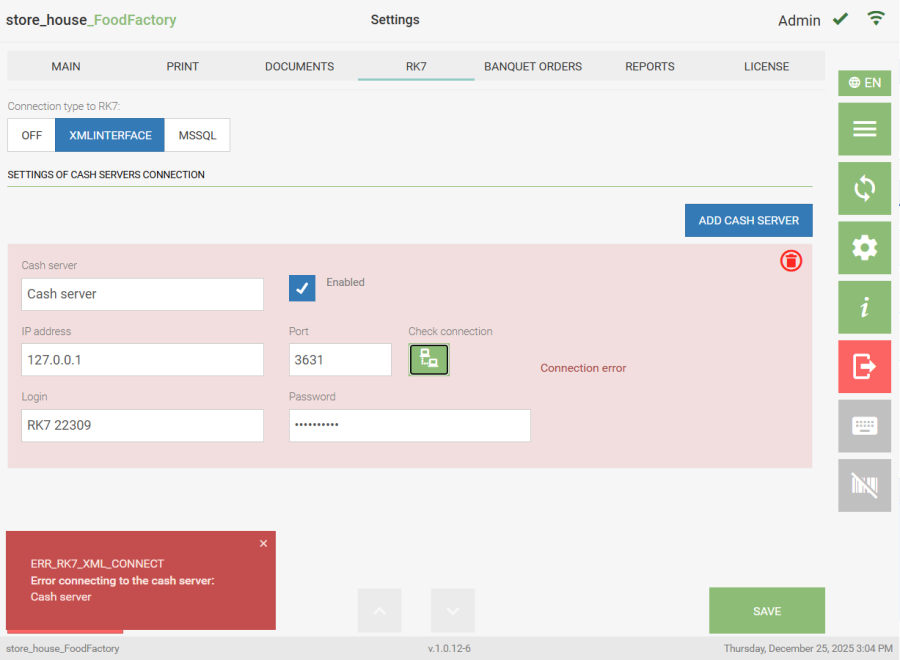
To delete the Cash Server settings, click the button  on the right. To configure a connection with another Cash Server, click the "ADD CASH SERVER" button and fill in the opened fields.
This connection type receives information from the R-Keeper cumulative database (SQL). This functionality is configured by UCS company employees or regional company representatives. To receive data on banquet orders, online data collection must be configured in R-Keeper. To connect to RK7 using MSSQL, click the "MSSQL" button in the "RK7 Connection Type" field. It will be highlighted in blue. Then fill in the opened fields. 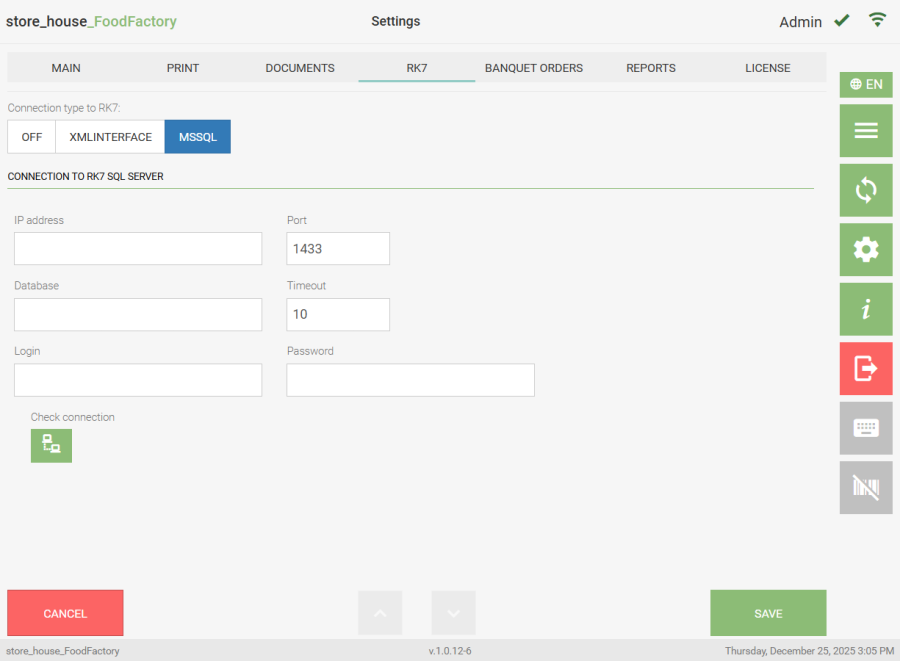 "IP Address" — specify the IP address of the RK7 database SQL server."Port" — specify the port of the RK7 database SQL server."Database" — specify the name of the RK7 database in SQL."Timeout" — specify the wait time for a response from the database server in seconds."Login" and "Password" — specify the login and password for accessing the SQL database. Then click the "Check Connection" button . If all fields are filled correctly, the message "Connection OK" will appear to the right of the button.
If the fields are filled incorrectly, or the SQL server is unavailable/stopped, the message "Connection error" will appear to the right of the button, and an error message will appear in the lower left corner.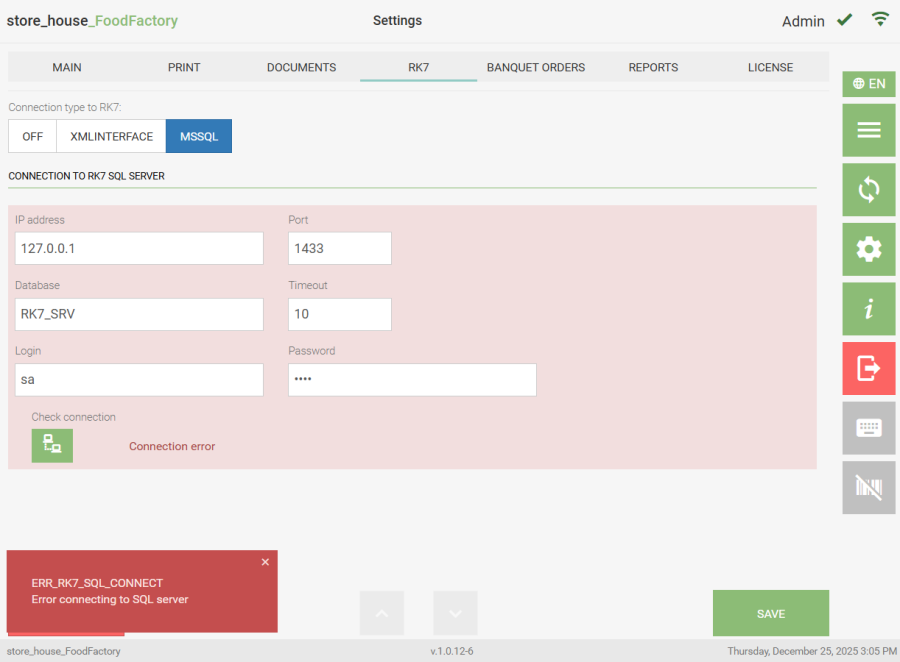 To save the changes made, click the "Save" button; to cancel saving, click the "Cancel" button.