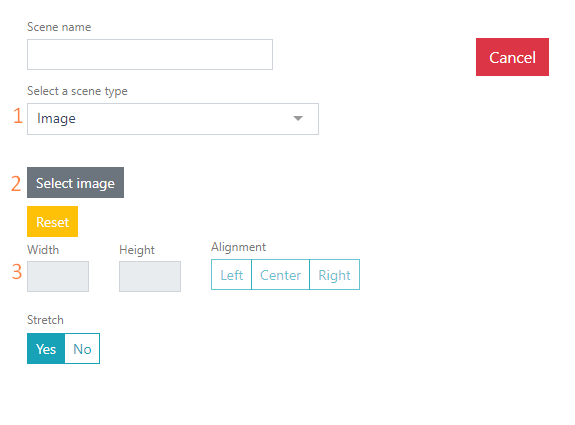
The Image scene – displays a picture, e.g., a background, logo, receipt printing image.
To be able to upload images, configure the media file source. Read more in the General Settings article.
Select the Image scene type.
Click the Select image button and choose the desired image from previously uploaded ones, or upload an additional image using the Browse Supported image formats: .png, .jpg, .jpeg, .bmp. If the wrong image was selected, click the Reset button and select the image again.
By default, the image is stretched to full screen. If you need to set custom dimensions and alignment, click No in the Stretch. The following fields will then become active:
Width – image width in pixels.
Height – image height in pixels.
Alignment – allows you to place the image on the page left, center, or right.