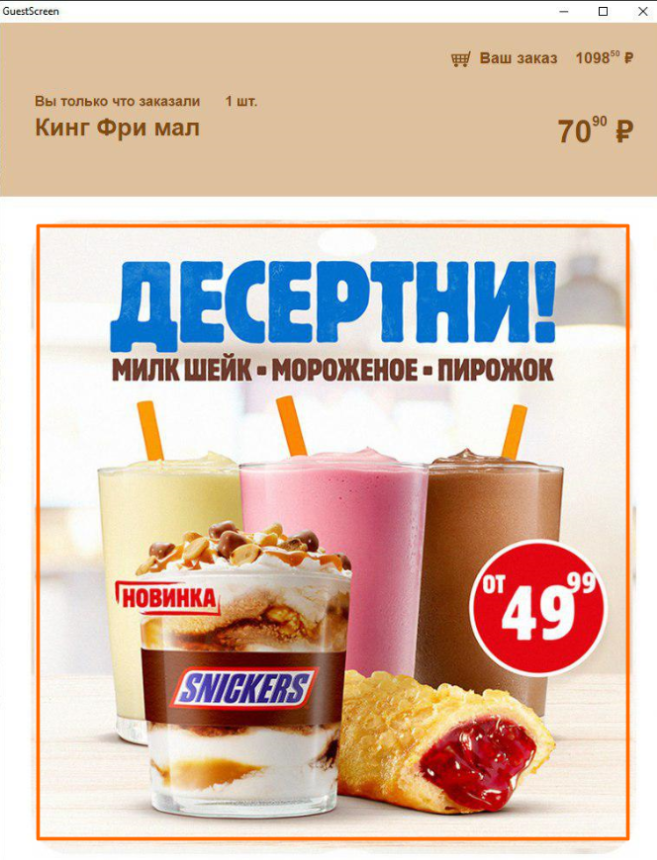
The Image with Text scene can be used to display advertisements on the screen.
To create a scene:
- Select the scene type.
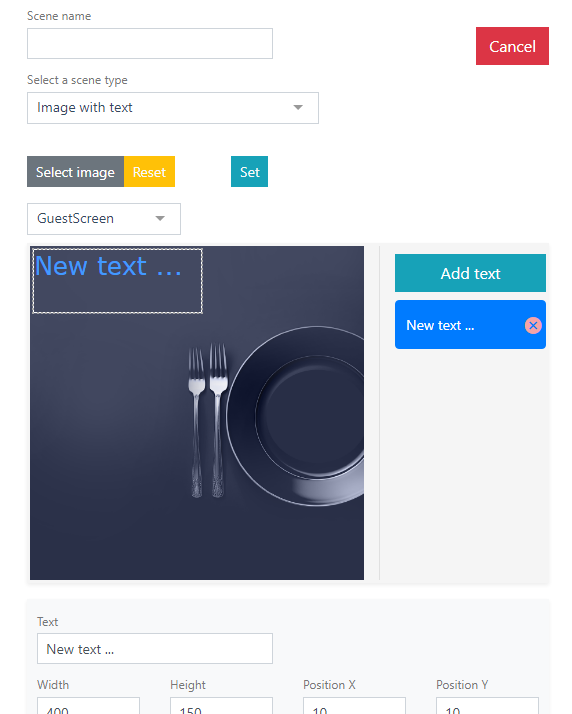
- To upload an image, click the Select image. Images can be uploaded in .png, .jpg, .jpeg, .bmp formats.
- Select the desired image from previously uploaded ones, or upload an additional image using the Browse If the wrong image was selected, click the Reset button and select the image again by clicking the Select image button.
- Next, click the Add text button, position it on New text... and enter the desired text. Edit the text using the appropriate settings.
- For additional settings, click the Set button.
If you need to change the Background color, use the html color palette.
The uploaded image can be centered. To do this, select Yes in the Center field.
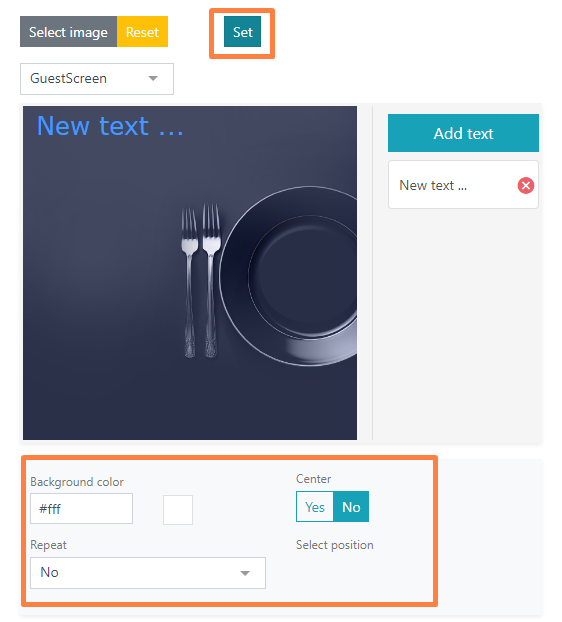
- If the image does not match the screen size, you can configure the Fit of the image in the scene.
If No is selected in the Fit field, the image will be placed in the center of the screen at its original size.
If Yes is selected, the image will be stretched vertically and horizontally to fill the entire screen.
The Horizontal option will fit the image horizontally, maintaining proportions to fill the screen.
The Vertical option will fit the image vertically, maintaining proportions to fill the screen. - Select the Position of the uploaded image:
- If No is specified, the image will be placed in the center of the screen at its original size.
- The Fill option will fill the entire screen.
- The Fit option will proportionally increase or decrease the image's position depending on its original size, fitting it on the screen. Convenient when adding images that exceed the screen size.
- Then click the Save button to save the new scene, or the Cancel button to cancel.
Done.