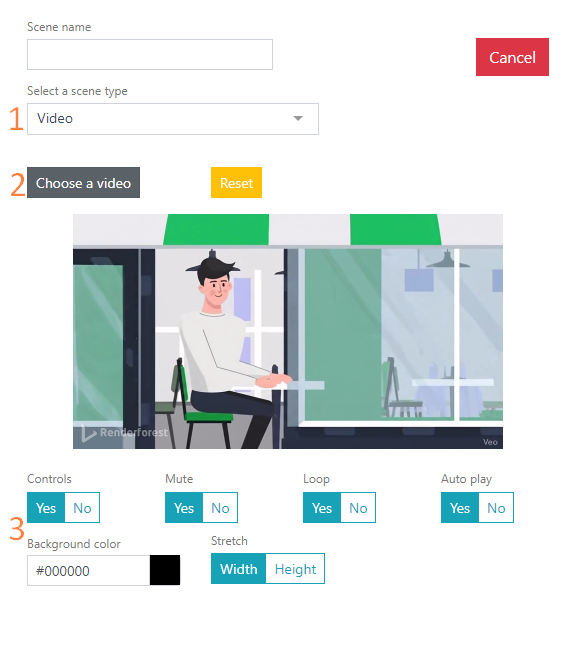
The Video scene – displays video clips, e.g., an advertisement, a video with recommendations or menu novelties.
To be able to upload video files, configure the media file source. Read more in the General Settings article.
- Select the Video scene type.
- Select the video by clicking the Select video. Only videos from the \GuestScreen\Front\media\video folder can be selected.
Supported video format: .mp4.
If the wrong video was selected, click the Reset button. - Make additional scene settings:
- Controls – when enabled, you can control video playback on the GS screen (stop, rewind, etc.).
- Mute – when enabled, the video will play without sound.
- Loop video file – when enabled, the video will play cyclically without stopping.
- Autoplay – when enabled, the video will play automatically; when disabled, it will only play via manual control. If the Controls setting is disabled, the video cannot be played.
- Background color – you can choose a background color if the video does not fill the entire screen.
- Stretch – the video can be stretched by screen width or height.