If orders to suppliers are planned to be sent directly from the SH.exe application, then mail servers that will send orders to suppliers via email must be added to the settings.
Mail servers are configured per r_k StoreHouse Pro enterprise.
To add a new mail server:

In the list of mail servers, select the context menu item "New Mail Server" or select the main menu item "Document" — "New Mail Server";
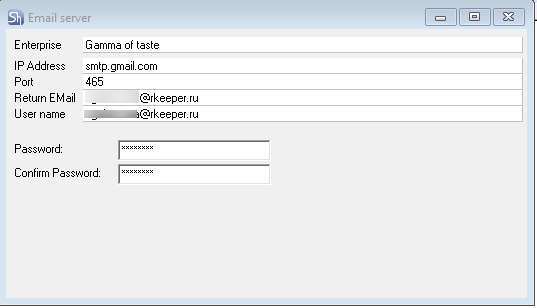
In the opened window, fill in the lines;
- Save (main menu item "Document" — "Save Document" or the button
 on the toolbar).
Enterprise – from the drop-down list, select the r_k StoreHouse Pro enterprise for which the created mail server will be used.
Next, specify the parameters of the mail server that will handle sending letters with orders to suppliers. Specify the password that was created for the account in the "Application Passwords" section.
To edit an existing mail server, in the list of servers, position the cursor on the desired one and use the context menu item " Mail Server Properties", or open the mail server properties by double-clicking the left mouse button on its name, or select the main menu item – "Document" — "Mail Server Properties". Make the necessary changes;
To delete a created mail server, in the list of servers, position the cursor on the server to be deleted and use the context menu item "Delete Mail Server", or the main menu item "Document" — "Delete Mail Server". The system will request confirmation for deletion. Click [Yes] if you really want to delete the selected mail server. Click [No] if you mistakenly selected the "Delete Mail Server" menu item.